



You’ve read the migration guides. Install a plugin, click export, wait a few minutes, and your site magically appears on the new host. That works fine…until you hit the 512MB import limit halfway through, or discover your subscription billing tokens don’t transfer, or watch your search rankings drop three days after what looked like a successful migration.
WordPress migrations use three approaches: automated plugins for standard sites, manual file and database transfer for large or custom builds, and professional services for complex WooCommerce stores.
No method is “better” than the others. It’s about aligning your approach with your site’s architecture before you start moving files and discovering incompatibilities mid-process.
This guide provides two things most migration tutorials skip. First, a decision framework that maps your site size, complexity, and technical comfort to the right method before you waste time on an approach that won’t work. Second, the SEO and DNS configurations that prevent ranking drops and downtime after migrations that appear successful initially but fail in the details.
💡We’re focusing exclusively on WordPress-to-WordPress migrations between hosting providers or domains. Cross-platform migrations from Webflow, Wix, Shopify, or proprietary systems involve distinct workflows and data-mapping challenges. If you’re switching hosting providers while staying on WordPress or changing domains, this guide can help.
Choose your migration method before you start
WordPress site migration uses three primary methods: automated plugins, manual file and database transfer, and professional migration services. The best approach depends on your site’s size, technical complexity, and business requirements.
The biggest time-waster in any migration is starting down one path and realizing halfway through that it does not fit your site. Picking the right method upfront saves you hours of backtracking and frustration.
The plugin route is ideal for small to medium WordPress sites running standard themes and commonly used plugins. Tools like All-in-One WP Migration or Duplicator handle the export, transfer, and import process through a guided interface. If your site has a straightforward setup without heavy customizations, this is the fastest and simplest path forward.
The manual route gives you full control over every file and database record. This is the better choice for large sites, heavily customized builds, or situations where migration plugins hit server limits or throw persistent errors. It requires working with SFTP and phpMyAdmin directly, but it also means nothing is hidden behind a plugin’s automated process.
Professional migration services make sense when time is tight, the technical complexity exceeds your comfort level, or your WooCommerce store has active subscriptions that need uninterrupted billing continuity. A specialist handles the risk so you do not have to.
How long does it take to migrate a WordPress website?
Migration duration depends on your method and site size. Plugin migrations for standard sites typically complete in 1–3 hours, including testing. Manual migrations with SFTP and database transfer take one to three days, depending on database size and integrations. Professional services typically deliver within several days to two weeks, factoring in discovery, execution, and post-migration validation.
Prepare your site for migration
Before migrating, create a full off-site backup, delete unused themes and plugins to reduce file size, and disable caching and security plugins that interfere with exports. Document your menu structure, form configurations, and third-party integrations to verify everything transfers correctly.
Create and test your backup
A backup that hasn’t been tested for restoration is just wishful thinking. Here’s what you need:
- Export both your filesystem and database to a location separate from your current host.
- Download a complete copy of your
wp-contentfolder, which contains themes, plugins, and uploaded media. - Export your database through phpMyAdmin or your hosting control panel.
- Test the backup by restoring it to a staging environment before starting the actual migration.
Clean up your database
WordPress accumulates junk that slows migrations and triggers timeout errors. Remove these before you start:
- Post revisions that bloat your database without adding value.
- Expired transients, which are temporary cached data that plugins create and forget to delete.
- Orphaned metadata from plugins you’ve uninstalled, but that left database entries behind.
Use WP-Optimize or access your hosting control panel to clear this clutter. A leaner database migrates faster and causes fewer import failures.
Disable plugins that block migration tools
Plugin interference blocks exports and corrupts transfers. Turn these off temporarily:
- Caching plugins like WP Super Cache and W3 Total Cache create static file versions that confuse migration tools.
- Security plugins, including Wordfence Security and Sucuri Security, block the file access required by migration plugins.
You can reactivate these once you’ve verified that the migration succeeded.
Document critical configurations
Take inventory of settings that don’t always transfer cleanly:
- Menu locations and structure.
- Contact form settings and email notifications.
- Ad placement codes and tracking pixels.
- SEO plugin settings from Yoast or Rank Math, including meta titles, descriptions, and canonical URLs.
- Third-party integrations with payment processors, email marketing platforms, and CRM systems.
Verify destination server requirements
Check that your new host meets these specifications:
- PHP 7.4 or higher.
- MySQL 5.7 or MariaDB 10.3 minimum.
- Memory allocation at 256MB or above.
- PHP execution time limit of at least 300 seconds for import operations.
These requirements determine whether your migration completes successfully or fails with cryptic timeout errors.
Protect your SEO before the move
SEO preservation during migration requires maintaining URL structures and setting up 301 redirects for any URLs that must change. Transfer your Yoast or Rank Math settings, verify your XML sitemap regenerates correctly, and submit the new site to Google Search Console within 24 hours of going live.
A website migration can wipe out months or years of search engine rankings if you skip the preparation work. The single most important rule is this: maintain your existing URL structures wherever possible. Changing URLs without proper redirects destroys rankings because Google treats every unmatched URL as a brand-new, unranked page.
The five pillars of migration SEO protection are:
- URL preservation: Maintain existing permalink structures to protect rankings.
- Redirect setup: Create 301 redirects only for URLs that must change.
- Metadata transfer: Export Yoast or Rank Math settings to the new site.
- Google notification: Use Search Console’s Change of Address tool for domain changes.
- Post-launch audit: Check indexing status at 24 hours, 1 week, and 1 month.
The good news is that with the right prep work done before you execute the migration, you can preserve your search visibility and even improve it on the other side.
Build your redirect map first
Before you touch a single file, you need a complete picture of your current site’s URL structure. Use a crawler tool like Screaming Frog to export every URL on your existing site into a spreadsheet.
Once you have the full list, prioritize the URLs that matter most. These are pages that:
- Receive the most organic traffic according to Google Analytics.
- Have backlinks pointing to them from other websites.
- Rank on page one or two for your target keywords.
For each of these legacy URLs, define a 1:1 mapping to its new WordPress equivalent. This spreadsheet serves as your redirect map and is the single most valuable document in your entire migration project.
Set up 301 redirects for every URL that changes
A 301 redirect is a permanent redirect that tells search engines the old page has moved to a new address. It passes the majority of the original page’s ranking power to the new URL.
Only URLs that must change need a redirect. If you can keep the same URL slug in WordPress, do it. For everything else, implement your redirects using the Redirection plugin in WordPress or through server-level .htaccess rules. Server-level redirects are faster, but the plugin is easier to manage if you have hundreds of URLs to handle.
Transfer your metadata accurately
Your page titles, meta descriptions, Open Graph tags, and schema markup all need to carry over to the new WordPress site. If you are moving from another platform that stores this data, export it and re-import it into an SEO plugin like Yoast or Rank Math.
Both plugins support importing settings from other platforms and from each other. Run a spot-check on your highest-traffic pages after import to confirm that titles and descriptions match the originals exactly.
Signal domain changes to Google
If your migration also involves a domain name change, use Google Search Console’s Change of Address tool. This feature directly notifies Google that your site has moved from one domain to another, which speeds up the re-indexing process and reduces the window where rankings may fluctuate.
Run a post-migration SEO audit schedule
Your work is not finished at launch. Follow this timeline to catch issues early:
- 24 hours after launch. Submit your updated XML sitemap to Google Search Console. Check for any crawl errors or 404 pages that appear in the coverage report.
- 1 week after launch. Review your redirect map against live URLs to confirm every redirect is firing correctly. Monitor Google Search Console for any spikes in “Page not found” errors.
- 1 month after launch. Compare organic traffic and keyword rankings against your pre-migration baseline. Investigate any pages that have dropped and verify their redirects, metadata, and indexing status.
This structured audit schedule gives you three clear checkpoints to identify and fix problems before they cause lasting damage to your search rankings.
Manual migration step by step
Manual WordPress migration transfers site files via SFTP and the database via phpMyAdmin, providing full control over every record. This method is the go-to approach when automated plugins hit size limits, when you need to exclude specific data, or when you want to understand exactly what is happening under the hood. Here is the complete process, broken into four stages.
Back up and transfer your files via SFTP
Start by connecting to your source (current) server using an SFTP client like FileZilla or Cyberduck. SFTP is the secure version of FTP. It encrypts your login credentials and all file data during transit, which standard FTP does not do.
Before you download anything, go into your SFTP client’s settings and enable “Show Hidden Files.” This step is easy to miss, but it is critical. Your .htaccess file is hidden by default and contains Apache permalinks and server-level security rules. If you skip it, your URLs and redirects will break on the new server.
Next, compress your wp-content folder into a ZIP archive directly on the server before downloading it. This folder holds your themes, plugins, uploads, and media files, which can include thousands of small files. Downloading them individually increases the risk of file corruption and takes significantly longer. A single ZIP transfer is faster and more reliable.
Once the download is complete, verify that the file counts in your local copy match the source. Then connect your SFTP client to the destination (new) server and upload everything to the root directory. This is typically /public_html or /www, but check with your hosting provider if you are unsure.
Export and import your database via phpMyAdmin
Your database holds all of your site’s content, settings, user accounts, and plugin configurations. Log in to phpMyAdmin on your source server and select your WordPress database from the sidebar.
- To export, choose the “Quick” method with SQL format for a standard migration. This works well for most sites.
- If your database is large or includes data you want to exclude, like log tables or expired transients, choose the “Custom” export method instead.
- Under the custom options, make sure “Add DROP TABLE” is checked. This setting allows you to re-run the import cleanly if the first attempt fails, because it automatically removes existing tables before recreating them. Without it, you will get “table already exists” errors that block the import.
On the destination server, you need to prepare a home for the database before importing:
- Create a new, empty database through your hosting control panel.
- Create a new database user with a strong, unique password.
- Grant “All Privileges” to that user on the new database.
Now open phpMyAdmin on the destination server, select the new empty database, and import your SQL file. Keep an eye on the process for timeout errors, especially if your file is over 50 MB. If the import times out, ask your host to increase the max_execution_time and upload_max_filesize PHP values, or use a command-line tool like WP-CLI to import the file instead.
Configure wp-config.php for the new environment
The wp-config.php file tells WordPress how to connect to its database. After moving your files, open this file in a text editor and update four values to match the new database credentials you just created:
DB_NAME— the name of your new database.DB_USER— the username you created.DB_PASSWORD— the password for that user.DB_HOST— usually set to localhost, but some hosting providers require a specific IP address or hostname. Check your host’s documentation if localhost does not work.
While you have the file open, consider regenerating your Authentication Keys and Salts. Paste the new keys over the existing ones. This forces all active sessions to log out and regenerates cookies, which is a good security practice any time a site changes servers.
Update URLs without breaking serialized data
WordPress stores full, absolute URLs throughout its database, specifically in the wp_posts, wp_postmeta, and wp_options tables. If your domain or directory path has changed, every one of these stored URLs must be updated to match the new address.
The catch is: a simple SQL find-and-replace will corrupt your data. WordPress plugins store settings as serialized data, which includes a character count for each string value. When you change oldsite.com to newsite.com and the string length changes, those character counts no longer match. WordPress then cannot read the data, and your plugin settings, widget configurations, and theme options break silently.
You need a serialization-aware tool that recalculates these character counts automatically. There are a couple of reliable options for this:
- Better Search Replace plugin. Install it on the new WordPress site, enter your old and new URLs, and run a dry run first to preview how many replacements will be made. Once you confirm the results look correct, run it for real.
- Search-Replace-DB standalone script. This is the better option when you cannot access
wp-admin, but you do have database access. Upload the script to your server in a folder with a random, non-obvious name (something like/sr-db-x7k9m/rather than/search-replace/). Automated bots constantly scan for this script by its default folder name, and finding it gives an attacker full access to your database.
🚨Delete the Search-Replace-DB script immediately after you finish using it. Leaving it on your server is a serious security risk, even if you renamed the folder. Once your URL replacements are confirmed and the site is loading correctly, remove every file associated with the script.
Migration plugins that handle your site size
Migration plugins automate WordPress file and database transfers through a guided interface, handling exports, transfers, and imports without requiring direct server access. The right plugin for your project depends on your site’s size, your hosting environment, and how comfortable you are with technical configuration.
Here are four widely used options, each with a different strength.
These plugins are recommended based on their functionality and community reputation, irrespective of any affiliations Codeable may have.
All-in-One WP Migration
All-in-One WP Migration and Backup exports an entire WordPress site, including content, themes, plugins, and media, as a single downloadable file. Its drag-and-drop interface works on almost any server environment with minimal configuration, making it the most beginner-friendly option. The trade-off is that the free version enforces an import site size limit of 512 MB (this may be 128 MB or less for older plugin versions and custom server configurations), which can block medium-to-large sites from completing the import without a paid extension.
Migrate Guru
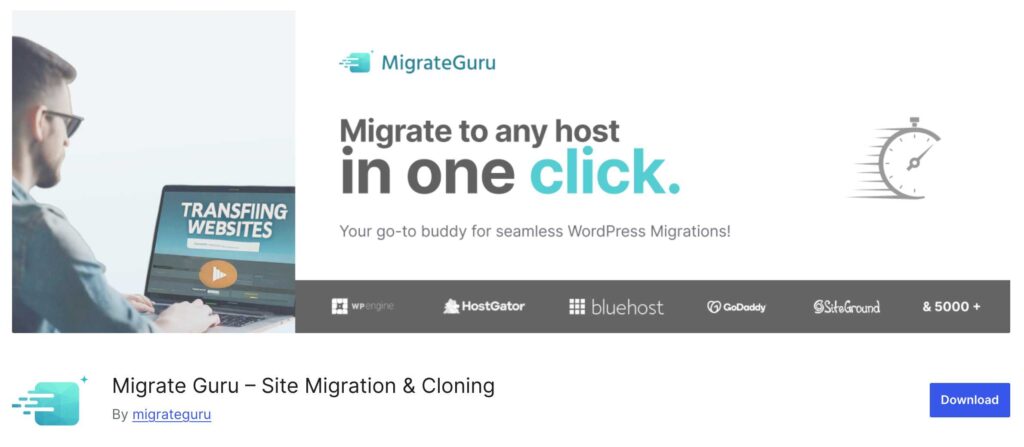
Migrate Guru handles large WordPress sites up to 200GB by processing the migration on its own external servers rather than your hosting environment. This avoids overloading your server resources during the transfer. You will need to provide an email address, as the plugin sends status updates and completion notifications via email rather than displaying progress in the browser.
Duplicator Pro
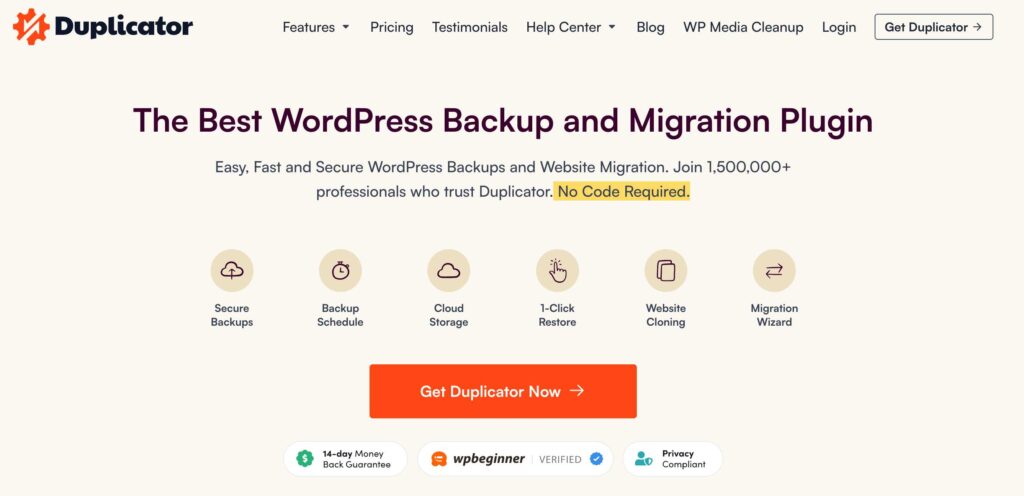
Duplicator Pro offers direct server-to-server transfers and a highly customizable installer that gives you granular control over every step. It is the most flexible option, but it has a steeper learning curve. You will need to manually create the destination database and user before running the installer, similar to the manual method.
UpdraftPlus
UpdraftPlus is primarily a backup plugin with a migration add-on. If you already use it for scheduled backups, adding migration capabilities keeps your workflow in a single tool. It handles the export, transfer, and restore processes through a familiar interface.
Regardless of which plugin you choose, follow a zero-downtime workflow. Keep your old site live and fully functional until the new site is verified, tested, and confirmed working. Only point your domain to the new server after everything checks out.
When free plugins hit their limits
Free WordPress migration works for sites under approximately 256 MB using All-in-One WP Migration’s free tier. Larger sites can use Migrate Guru, which handles sites up to 200GB at no cost by processing the migration on external servers. Manual migration via SFTP and phpMyAdmin is always free but requires technical comfort with database exports and wp-config.php editing.
Multisite installations add another layer of complexity. Not all migration plugins support WordPress Multisite networks, and those that do may require specific compatibility checks before you begin. In many cases, multisite migrations need a manual approach to ensure that each subsite’s data, uploads, and configurations transfer correctly.
If a plugin throws repeated errors after troubleshooting, such as timeout failures, incomplete imports, or database connection issues, stop and reassess. Fighting against server limits rarely ends well. At that point, switching to the manual method or bringing in a professional WordPress developer is a faster and safer path to a successful migration.
Point your domain without downtime
DNS (Domain Name System) records connect your domain name to a server’s IP address. Once your files and database are in place on the new server, updating these records is the final technical step that directs traffic to the new location.
Log in to your domain registrar (the service where you purchased your domain, such as Namecheap or GoDaddy) and locate the DNS management panel. You need to update two records:
- Change your A Record to point to your new hosting provider’s server IP address.
- Update the CNAME record for the
wwwsubdomain so bothyourdomain.comandwww.yourdomain.comresolve to the new server.
Some hosting providers require a Nameserver (NS) change instead of an A Record update. If that applies to you, there is an important extra step: manually copy your existing MX and TXT records into the new host’s DNS zone before making the switch. MX records control where your email is routed. If you skip this, your professional email (Google Workspace, Microsoft 365, or similar) will stop receiving messages immediately after the nameserver change takes effect.
Why DNS takes 24–48 hours
Every DNS server around the world caches your domain’s records for a set period defined by the TTL (Time to Live) value. When you update your records, those cached copies do not refresh instantly. Each server must wait until its cached version expires before fetching the new information. This staggered refresh process across global servers is called propagation, and it can take up to 48 hours to complete everywhere.
You can speed this up by lowering your TTL to 300 seconds (5 minutes) a day or two before you make the DNS change. This tells DNS servers to cache your records for a much shorter period, so they pick up the new IP address faster once you switch.
Keep both servers running during the transition
During propagation, some visitors will still be directed to your old server while others reach the new one. To prevent anyone from hitting a dead page:
- Keep your old hosting account active throughout the propagation window.
- Only cancel your previous hosting after you have confirmed that propagation is complete and all traffic is reaching the new server.
If your migration also involves a domain name change, make sure you have already updated every URL instance in your WordPress database and wp-config.php file before touching DNS. The database URL replacement described earlier in this guide should be completed first, so the new site is fully functional the moment traffic arrives.
Test before you announce the migration
Post-migration testing validates that all content, functionality, and integrations work correctly on the new server before any visitor sees the site. Your files are transferred, the database is imported, and DNS is pointed, but the migration is not finished until every check on this list passes. Your old site should remain live until then.
Content and functionality checks
Start with the content your visitors interact with daily. Run a full broken link scan using the Broken Link Checker plugin, Screaming Frog, or a web-based tool like the Ahrefs broken link checker. Even a small number of broken internal links can frustrate users and signal quality issues to search engines.
Next, work through these checks page by page on your highest-traffic content:
- Verify that all images load correctly. This includes media library images and any image URLs that were hardcoded directly into post content or theme files. Missing images are one of the most common post-migration issues.
- Test every contact form. Submit a test entry and confirm three things: the success message displays to the user, the email notification arrives in the correct inbox, and the submission data logs properly in your form plugin’s entries.
- Run a site search using known terms. If the search returns no results or broken results, it usually means the database import was incomplete, or the search index needs to be rebuilt.
- Check embedded content. Load pages that contain embedded videos, iframes, Google Maps, or third-party widgets and confirm they render and function as expected.
E-commerce and user verification
If your site runs WooCommerce or any other e-commerce plugin, this stage is non-negotiable. A broken checkout means lost revenue from the moment you go live.
- Run a full test purchase. Walk through the entire buying process from adding a product to the cart, through checkout, payment processing, and order confirmation. Do not skip any step.
- Verify payment gateway connections using real test transactions through your gateway’s sandbox or test mode. Confirm that payment data processes correctly and that order status updates as expected in the WordPress admin.
- Test user login and logout flows. Log in as different user roles – Admin, Editor, Subscriber – and confirm each role sees the correct dashboard and permissions.
- Confirm the password reset flow works. Trigger a password reset email, click the link, and set a new password. If this fails, your site’s email sending configuration likely needs attention on the new server.
Security and SEO verification
The final round of checks protects both your visitors’ safety and your search engine visibility.
Mixed content errors are one of the most frequent post-migration problems. These occur when an HTTPS page tries to load assets (images, scripts, stylesheets) over HTTP. Modern browsers block these requests, which can break page layouts and functionality. Use your browser’s developer console to scan for mixed content on key pages.
Then confirm the following:
- SSL certificate is active, and the padlock icon displays in the browser address bar on every page.
robots.txtallows crawling. If you used a staging environment during development, it may still contain aDisallow: /rule that blocks all search engines. Remove this before going live, or your site will disappear from search results.- XML sitemap is accessible and contains the correct, updated URLs. Visit
yourdomain.com/sitemap.xmlto verify. - Meta titles and descriptions display correctly on your most important pages. Spot-check at least your homepage, top landing pages, and any page that ranks well in search. Compare them against your pre-migration records to confirm nothing was lost or overwritten during the transfer.
Only after every item on this list passes should you consider the migration complete and begin directing live traffic to the new site.
Fix common migration errors fast
Post-migration errors typically fall into five predictable categories: server configuration issues, database mismatches, memory limits, credential errors, and broken URL references. Most are resolved within minutes once you identify the pattern. Here are the five issues you are most likely to encounter, along with the fastest way to resolve each one.
Internal Server Error (500)
This is usually caused by mod_rewrite issues or a corrupted .htaccess file.
- Connect to your server via SFTP, rename the existing
.htaccessfile to.htaccess_backup, and then log into your WordPress admin. - Navigate to Settings → Permalinks and click Save Changes without modifying anything.
- WordPress will generate a fresh
.htaccessfile automatically.
Character encoding problems (garbled special characters)
If accented characters, symbols, or non-English text appear as gibberish, the issue is a database charset mismatch between the export and import. This typically happens when a UTF-8 database is imported as latin1, or the other way around. Re-export the database with the correct character encoding selected, then import it again to the destination server.
White screen of death
A blank white page with no error message usually points to PHP memory limits being exceeded or a plugin conflict on the new server.
Add the following line to your wp-config.php file to increase available memory:
define('WP_MEMORY_LIMIT', '256M');If the white screen persists, the problem is likely a plugin conflict.
- Connect via SFTP, navigate to
/wp-content/plugins/, and rename plugin folders one at a time to deactivate them. - Reload the site after each rename to identify which plugin is causing the failure.
Database connection errors
The message “Error establishing a database connection” means WordPress cannot reach its database. Open wp-config.php and verify that DB_NAME, DB_USER, DB_PASSWORD, and DB_HOST match the credentials you created on the new server exactly. Also, confirm that the database user has been granted full privileges on the correct database.
Broken images and internal links
If images are missing and internal links lead to 404 pages, the stored URLs in your database still reference the old domain. Run a serialization-aware search-and-replace using the Better Search Replace plugin or the Search-Replace-DB script, as described earlier in this guide.
A standard SQL find-and-replace will corrupt serialized data, so always use a tool designed for WordPress databases.
When to hire migration help and what it costs
A DIY migration works well for straightforward sites, but it becomes a false economy when the complexity or business stakes are high. The time you spend troubleshooting edge cases, the risk of extended downtime, and the potential for data loss can quickly outweigh the cost of professional help.
Consider hiring a specialist if your project involves any of the following:
- Large databases with complex relationships between custom post types, taxonomies, and metadata that require careful mapping during transfer.
- Bespoke theme and plugin integrations that connect to external APIs or contain proprietary business logic tied to your operations.
- Zero-downtime requirements for high-traffic sites where even a few minutes of inaccessibility means measurable revenue or reputation loss.
- WooCommerce stores with active subscriptions. Payment tokens are stored with the payment gateway and need supported export paths. A mistake here causes billing interruptions for your existing subscribers.
- Security-compromised sites that need malware remediation as part of the migration process.
Your options across the price spectrum
Professional migration help comes in several forms, and the right fit depends on your site’s complexity and budget.
- Hosting provider migration services are often included free with a new hosting plan. These work well for straightforward moves between standard WordPress environments, but they rarely cover custom database work or cross-platform transfers.
- Automated migration tools like Cart2Cart and LitExtension handle standard e-commerce data transfers well, typically costing $200–$500 depending on the number of products and order records. They are a solid middle ground for store owners moving product catalogs, customer records, and order histories between supported platforms.
- Curated freelancer platforms are the right choice when your migration requires vetted expertise and hands-on problem-solving for complex configurations.
- Full-service agencies serve enterprise-level needs where the migration is part of a larger digital transformation project.
Codeable for WooCommerce and WordPress migrations
For complex WordPress and WooCommerce migrations, Codeable — an official WooCommerce development partner — offers multiple migration packages, depending on your needs.
For custom or complex migrations, you can post a project and get matched with a vetted migration specialist within a day. Hourly rates run $80–$120 USD, and your expert will scope the project based on your specific requirements.
For straightforward store migrations, Codeable offers Full Store Migration packages starting at $2,000 that cover data and design preservation.
Both options include escrow payment protection, a 28-day bug-fix warranty, and access to specialists vetted through Codeable’s rigorous 6-step screening process, which accepts only the top 2% of WordPress developer applicants.
Your site is live, and your SEO is safe
A successful WordPress migration follows a predictable sequence: choose the right method for your site’s size and complexity, prepare your redirect map and metadata exports, protect your SEO before touching a single file, execute the transfer with the appropriate tools, point your DNS without downtime, and validate everything systematically before going public.
None of this requires drama. It requires a clear plan matched to your situation.
For WooCommerce stores or complex migrations where the stakes are high, Codeable’s vetted WordPress migration specialists can handle the entire move for you. Post your project today to get started!

20 000+ businesses of every shape and size have already trusted us to hire WordPress developers and scale their growth.
 Dream It