



You clicked refresh. Nothing. Just a blank white page staring back at you. Your WordPress site has vanished, and there’s no error message telling you why.
The WordPress white screen of death (WSoD) is a blank page that appears when PHP encounters a fatal error from plugin conflicts, memory exhaustion, or corrupted files, stopping execution before rendering any page content. It’s one of the most common WordPress errors, and one of the most unnerving because it offers zero clues about what went wrong.
Unlike a 404 page or a database connection error, the WSoD doesn’t point you in any direction. Your browser might show “This page isn’t working” or simply render nothing at all. The site looks completely offline to your visitors, and you can’t tell if the problem is a simple fix or something more serious.
Fortunately, this is a common WordPress issue and is almost always fixable.
This guide walks you through diagnosing and resolving the WSoD, whether or not you still have access to your WordPress admin dashboard. You’ll learn how to enable debugging to reveal the actual error, isolate plugin and theme conflicts, increase memory limits, and restore corrupted files. You’ll also learn when a problem exceeds basic troubleshooting and requires expert help.
🚨Note: This guide assumes you can access your hosting file manager or connect via FTP to view your WordPress installation files. You don’t need advanced coding skills, but you should be ready to rename critical folders and edit configuration files.
What is the WordPress white screen of death?
The WordPress white screen of death (WSoD) is a blank browser page caused by a fatal PHP error that stops WordPress from executing before any content can render. In newer WordPress versions (5.2 and later), you might instead see a “There has been a critical error on this website” message, but the underlying cause is the same. WordPress runs on PHP, a server-side programming language. When PHP encounters a fatal error, such as a missing file, a syntax mistake, or a memory shortage, it stops running immediately.
On production servers, error messages are hidden from visitors for security reasons. So instead of seeing a helpful error message, your browser receives… nothing. Just an empty response.
The crash usually occurs during WordPress’s startup sequence, when the system loads critical files in this order:
- wp-config.php loads first with your database credentials and site settings.
- Plugin files load next, executing any code they contain.
- Theme files load last, including functions.php, where custom code often lives.
If any file in this chain triggers a fatal error, everything after it fails to load, including the HTML that would normally display your site.
Different browsers interpret this empty response differently. Chrome might show “This page isn’t working” with an HTTP 500 error. Firefox often renders a completely blank white page. Safari may display a connection error. These variations can make the WSoD confusing to identify, but the root cause is identical across all browsers.
The key insight here is that your browser can’t diagnose this problem. It only knows the server didn’t respond with a webpage. To find out what actually went wrong, you need server-side diagnostics, specifically, WordPress debug mode, which we’ll cover in the fix section below.
What causes the WordPress white screen of death?
The WordPress white screen of death appears when PHP encounters a fatal error from plugin conflicts, theme problems, memory exhaustion, or corrupted files. Here are the most common causes:
- Plugin conflicts. A recently installed or updated plugin clashes with your WordPress version, PHP version, or another plugin. This is the most frequent cause of WSoD, particularly after automatic updates run overnight.
- Theme errors. A syntax error in your theme’s functions.php file, often from a missing semicolon or mismatched bracket, crashes PHP immediately. Theme incompatibility with your server’s PHP version can also trigger this.
- PHP memory exhaustion. Your site runs out of allocated memory while processing a request. This happens frequently with WooCommerce stores, page builders, or sites running many plugins simultaneously. The default WordPress memory limit of 40 MB isn’t sufficient for resource-intensive operations.
- Corrupted core files. A failed automatic update can leave WordPress core files truncated or missing entirely. If the update process was interrupted by a server timeout, critical files may be incomplete.
- Corrupted .htaccess file. A syntax error in your .htaccess file or an infinite redirect loop prevents Apache from properly processing requests.
- Failed update lockout. WordPress creates a temporary .maintenance file during updates. If an update is interrupted, this file may remain in your root directory, blocking access to your entire site.
- PHP version incompatibility. Your server’s PHP version is either too old or too new for your installed plugins or themes. Some older plugins break on PHP 8.x, while outdated PHP versions lack features newer plugins require.
- File permission issues. The server can’t read the required PHP files because permissions were changed during a migration, a backup restore, or a hosting switch. Folders need 755 permissions, and files need 644 permissions for WordPress to function.
How to fix the WordPress white screen of death
If your WordPress site shows a white screen, start by checking whether you can access your admin dashboard at yourdomain.com/wp-admin. If the admin loads but your frontend doesn’t, the problem is likely theme-related. If both are inaccessible, a plugin conflict or memory issue is more probable.
The fixes below are ordered from least invasive to most invasive. Start at the top and work your way down, as most WSoD issues resolve within the first few steps. Each method targets a specific cause, so the error message you uncover (once debugging is enabled) will point you toward the right solution.
Before making any changes, read the backup section first. One wrong edit can compound the problem, and having restore points means you can always undo your work.
Before you start: back up everything
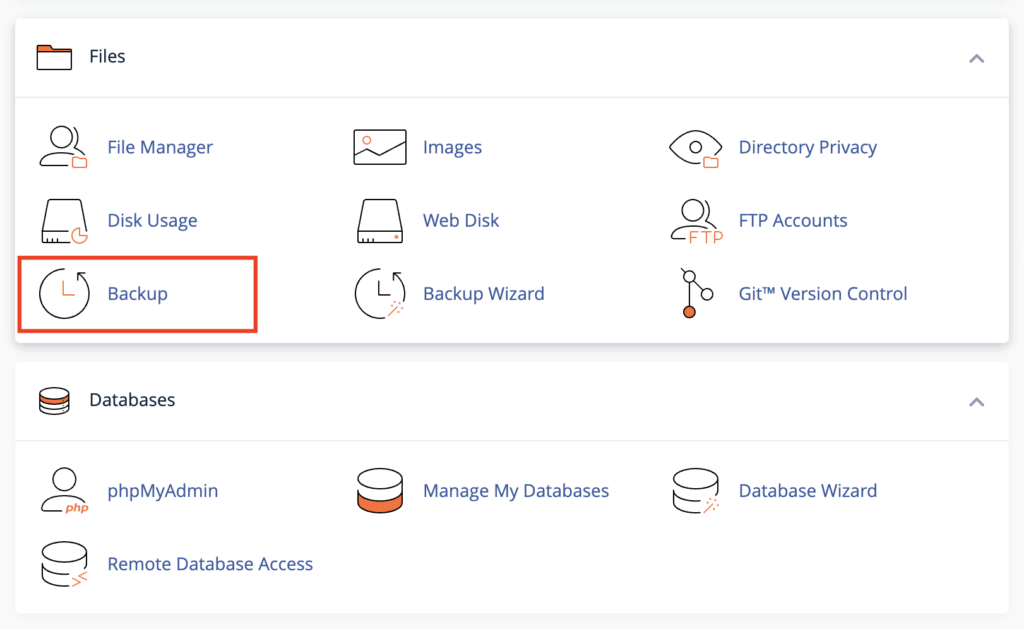
Before editing any files, download copies of the three files you’re most likely to modify: wp-config.php, .htaccess, and your theme’s functions.php. Save these to your local computer so you can restore them if something goes wrong.
If your hosting provider offers one-click backups through cPanel, Plesk, or a custom dashboard, create a full site backup now. This captures your database and all files in their current state, because even a broken state is better to have saved than lost entirely.
Improper edits during troubleshooting can turn a simple fix into extended downtime. A missing character in wp-config.php or an accidental deletion can create new errors on top of the original problem. With backups in place, you can always restore and start fresh.
💡If you’re uncomfortable connecting via FTP or editing PHP files directly, this is a reasonable point to consider professional help. Codeable’s WordPress experts can diagnose WSoD issues and provide a fixed-price estimate, typically responding within a few hours.
Enable WordPress debugging mode
WordPress debugging is a mode that replaces blank screens with specific error messages showing the problematic file and line number. By default, WordPress hides these errors on live sites for security reasons. Turning on debug mode makes the actual problem visible.
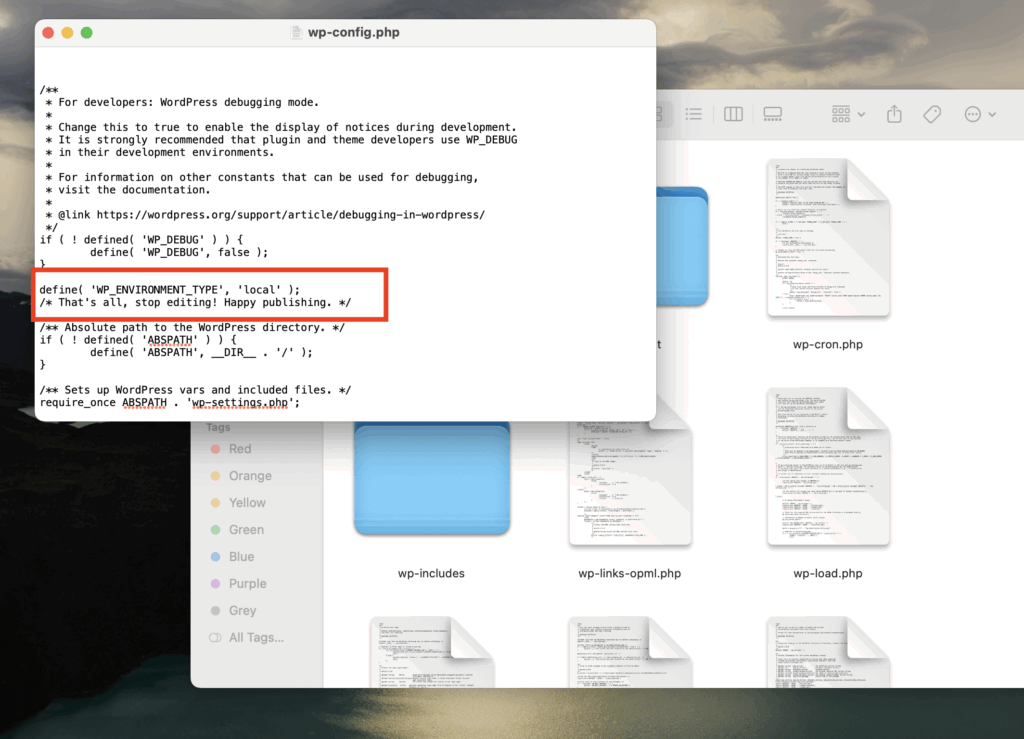
- Connect to your site via FTP or your hosting file manager and open
wp-config.phpfrom your site’s root directory. - Look for the line that says
/* That's all, stop editing! Happy publishing. */and add the following code just above it:
define( 'WP_DEBUG', true );define( 'WP_DEBUG_LOG', true );define( 'WP_DEBUG_DISPLAY', false );
- This configuration logs all errors to a file at
/wp-content/debug.logwithout displaying them publicly on your site. Your visitors won’t see error messages, but you’ll have a complete record of what’s failing. - Save the file and reload your website.
- Then navigate to
/wp-content/via FTP and download thedebug.logfile. - Open it in any text editor and search for “Fatal error” entries. These lines specify exactly which file and line number caused the crash.
- Common error messages you might find:
- “Allowed memory size exhausted” means your site needs more PHP memory.
- “Call to undefined function” indicates a missing plugin or corrupted file.
- “Parse error: syntax error” points to a typo in PHP code, usually in functions.php or a plugin file.
The error message tells you where to focus your fix. If it names a plugin file, you have a plugin conflict. If it references your theme, that’s your culprit.
How do I fix the white screen without admin access?
If you can’t access wp-admin, disable all plugins by renaming the plugins folder via FTP. This forces WordPress to deactivate every plugin at once. This method works because WordPress can only run plugins it can find. When the folder name changes, WordPress treats all plugins as missing and skips them during startup.
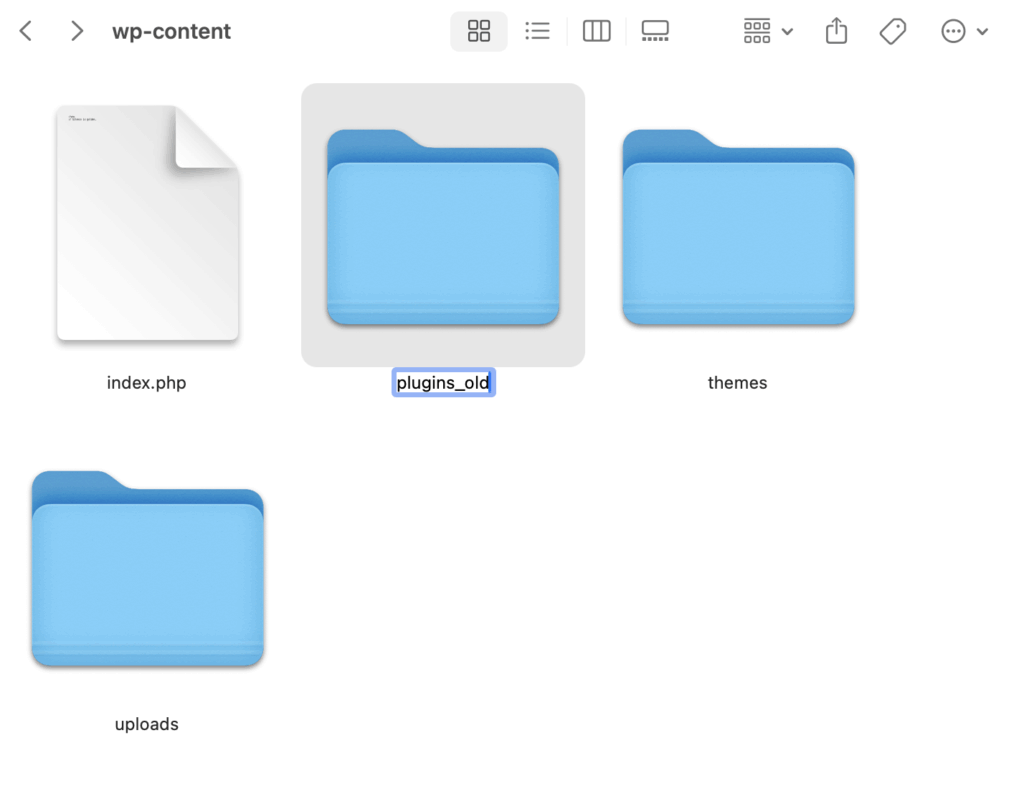
- Connect to your server via FTP (using FileZilla, Cyberduck, or your hosting file manager) and navigate to
/wp-content/. - Find the folder named
pluginsand rename it toplugins_old. - Now reload your website.
If your site loads: A plugin caused the crash. You’ve confirmed the problem category; now identify which specific plugin is responsible.
- Rename
plugins_oldback toplugins. Your site will break again, that’s expected. - Now go inside the plugins folder and rename individual plugin folders one at a time, reloading your site after each rename.
- When the site starts working, you’ve found the problematic plugin.
- You can either keep it disabled, look for an update, or find an alternative plugin that provides similar functionality.
If the WSoD persists: The issue isn’t plugin-related.
- Rename
plugins_oldback toplugins(so your plugins remain intact) and proceed to theme diagnostics in the next section.
Binary search method: If you have 20+ plugins, testing each one individually takes forever. Instead, rename half of your plugin folders at once. If the site loads, the problem is in the half you renamed. If it doesn’t load, the problem is in the half that are still active. Keep dividing in half until you isolate the culprit. This approach finds the problem in 4-5 steps instead of 20.
Don’t forget mu-plugins: Check /wp-content/mu-plugins/ as well. Must-use plugins load automatically and don’t appear in your regular plugins list. They’re often used by managed hosting providers or security tools, and they can cause WSoD just like regular plugins. Rename this folder to mu-plugins_old if standard plugin deactivation didn’t solve the problem.
Switch to a default theme
When the admin loads but the frontend shows white, the cause is theme-related. If disabling plugins didn’t resolve your WSoD, your active theme is the next suspect, particularly if you recently edited functions.php or updated the theme.
- Via FTP or your hosting file manager, navigate to
/wp-content/themes/. - Find your active theme’s folder and rename it (for example, change
theme-nametotheme-name_old). - WordPress will automatically fall back to a default theme, such as Twenty Twenty-Four or Twenty Twenty-Three, if one exists in your themes folder. Reload your site after renaming.
If your site loads: Your theme contains the error. The problem is most likely a syntax error in functions.php, like a missing semicolon, unclosed bracket, or broken code snippet.
- Download your theme’s functions.php file, review recent changes, and fix the syntax issue before renaming the folder back.
If the WSoD persists: The issue isn’t theme-related. Rename your theme folder back to its original name and investigate core files or server configuration next.
No default theme installed?
- Download a default theme like Twenty Twenty-Four from WordPress.org.
- Extract the ZIP file, and upload the theme folder to
/wp-content/themes/via FTP. - Then, rename your active theme to trigger the fallback.
Clear browser and WordPress cache
Caching can make a WSoD appear to persist even after you’ve successfully fixed the underlying problem. Your browser or a caching plugin might still serve the old, broken version of the page.
Start with a quick test: open your site in an incognito or private browser window. This bypasses your browser’s cached files. If the site loads in incognito but not in your regular browser, clear your browser cache, and you’re done.
If you’re running a caching plugin, you’ll need to manually delete its cache files via FTP since you can’t access the WordPress dashboard:
- WP Rocket: Delete the entire
/wp-content/cache/wp-rocket/folder. - W3 Total Cache: Delete all folders inside
/wp-content/cache/. Also, openwp-config.phpand remove the linedefine('WP_CACHE', true);if present. - Autoptimize: Delete
/wp-content/cache/autoptimize/. - LiteSpeed Cache: Delete
/wp-content/cache/litespeed/.
Server-level caching from your hosting provider (common with WP Engine, Kinsta, and SiteGround) requires clearing through your hosting dashboard or contacting support.
What does allowed memory size exhausted mean?
If debug.log shows “Allowed memory size exhausted,” add define('WP_MEMORY_LIMIT', '256M'); to wp-config.php. This increases the memory WordPress can use and resolves most memory-related WSoD errors.
WordPress attempts to set a memory limit of 40MB for single sites and 64MB for multisite installations, but these defaults often aren’t sufficient for modern sites running WooCommerce, page builders, or multiple active plugins. The 256MB limit has become the standard recommendation across the WordPress community.
Method 1 — wp-config.php (most reliable):
Open wp-config.php and add this line before /* That's all, stop editing! */:
define( 'WP_MEMORY_LIMIT', '256M' );Method 2 — php.ini or .user.ini:
If your host allows PHP configuration, create or edit a .user.ini file in your WordPress root directory and add:
memory_limit = 256MMethod 3 — .htaccess (Apache servers only):
Add this line to your .htaccess file:
php_value memory_limit 256M🚨Warning: The .htaccess method causes a 500 Internal Server Error on servers running PHP-FPM. If you see a new error after adding this line, remove it immediately and use one of the other methods instead.
If none of these methods increase your available memory, your hosting provider has set a hard limit at the server level. You’ll need to contact their support team to request an increase or consider upgrading to a plan with higher resource allocations.
Check and fix file permissions
Incorrect file permissions can cause a 500 error or WSoD, especially after migrating your site to a new host or restoring from a backup. When permissions are too restrictive, the server can’t read PHP files. When they’re too open, some hosts block access for security reasons.
Standard WordPress permissions are:
- Folders: 755 (owner can read, write, execute; others can read and execute).
- Files: 644 (owner can read and write; others can only read).
- wp-config.php: 440 or 400 (more restrictive since this file contains database credentials).
To fix permissions using FileZilla or another FTP client:
- Right-click your WordPress root folder.
- Select “File Permissions” or “CHMOD.”
- Enter 755 in the numeric value field.
- Check “Recurse into subdirectories.”
- Select “Apply to directories only.”
- Click OK.
Repeat this process for files: enter 644, check “Recurse into subdirectories,” and select “Apply to files only.”
After updating permissions, reload your site to check if the WSoD is resolved.
Resolve failed auto-update issues
If WordPress was running an automatic update when the server timed out or lost connection, your site may be stuck in maintenance mode. WordPress creates a temporary lock file during updates that should disappear automatically, but sometimes it doesn’t.
- Via FTP, navigate to your WordPress root directory (the same folder containing wp-config.php) and look for a file named
.maintenance. - This file might be hidden depending on your FTP client settings, so enable “Show hidden files” if you don’t see it.
- Delete the
.maintenancefile. This removes the lock and allows WordPress to load normally again. - Reload your site. If it comes back online, the interrupted update was your only problem. However, if the WSoD persists or you see new errors, the update may have corrupted core files before the timeout occurred.
- In that case, proceed to the “Re-upload WordPress core files” section below to replace potentially damaged files with fresh copies.
Check for PHP syntax errors or restore a backup
If debug.log shows “Parse error: syntax error” followed by a file path and line number, you have a code error in that exact location. PHP can’t execute the file because something in the code structure is broken.
Common causes include:
- A missing semicolon at the end of a line.
- Mismatched brackets or parentheses.
- A broken code snippet copied from a tutorial with formatting issues.
- Unclosed quotation marks in a string.
Download the file referenced in the error via FTP and open it in a code editor like VS Code, Sublime Text, or even Notepad++.
Navigate to the line number mentioned in the error. Look for obvious syntax problems. Code editors often highlight errors with red underlines or color changes.
Fix the issue, save the file, and re-upload it via FTP.
If you can’t identify the error or you’re unsure what changed, restore the file from your backup instead. This is where version control systems like Git prove invaluable, as you can see exactly what changed and revert specific edits without losing other work.
Regenerate your .htaccess file
The .htaccess file controls how Apache handles incoming requests, including pretty permalinks, redirects, and security rules. A syntax error in this file causes immediate failure before WordPress or PHP even starts loading.
- Via FTP, find the
.htaccessfile in your WordPress root directory. - Rename it to
.htaccess_oldto deactivate it. - Reload your site.
If your site loads: The .htaccess file was corrupt or contained a problematic rule. You’ve found the cause.
If the WSoD persists: The problem lies elsewhere. Rename .htaccess_old back to .htaccess and continue troubleshooting other areas.
- To regenerate a fresh .htaccess file, log in to your WordPress admin dashboard (which should now be accessible).
- Go to Settings → Permalinks and click “Save Changes” without modifying anything.
- WordPress automatically generates a new .htaccess file with default rules.
Important: Without a valid .htaccess file, your homepage might load, but internal pages will show 404 errors. Don’t skip the regeneration step once you’ve confirmed .htaccess was the problem.
Re-upload WordPress core files
If a failed update corrupted core files, you can replace them manually without losing your content, themes, or plugins. This process overwrites only the WordPress system files while leaving your customizations intact.
Download a fresh copy of WordPress from wordpress.org/download/ and extract the ZIP file on your local computer.
🚨Critical step: Before uploading anything, delete the wp-content folder from the extracted files. Never overwrite your server’s wp-content folder – this contains your themes, plugins, uploads, and everything that makes your site unique.
Also, remove wp-config.php from the extracted files. Your existing wp-config.php contains your database credentials and site settings, and you don’t want to replace it with a blank template.
Now upload the remaining files and folders via FTP:
- The entire
wp-adminfolder. - The entire
wp-includesfolder. - All PHP files in the root directory (wp-login.php, wp-cron.php, index.php, etc.).
Set your FTP client to overwrite existing files when prompted. This replaces potentially corrupted core scripts with verified fresh copies while preserving your configuration and content.
Increase PHP text processing limits
Sites with very long posts, complex shortcodes, or content generated by page builders can exceed PHP’s regex processing limits. When this happens, PHP fails silently, with no error message, just a white screen on that specific page.
If the WSoD only appears on certain long-content pages while shorter pages load fine, this is likely your issue.
Add these lines to your wp-config.php file before /* That's all, stop editing! */:
ini_set('pcre.recursion_limit', 20000000);ini_set('pcre.backtrack_limit', 10000000);
These settings increase the limits for PHP’s PCRE (Perl Compatible Regular Expressions) engine, which WordPress and many plugins use to process text content. The default values are often too low for pages containing thousands of words or nested shortcode structures.
Save the file and reload the problematic page to test.
Contact your hosting provider
If all fixes fail and your debug.log file is empty or shows no relevant errors, the problem likely exists at the server level, which is outside WordPress entirely.
Contact your hosting support team with specific questions rather than just reporting “my site is down”:
- “Are there any errors in the Apache or Nginx logs for my domain?”
- “Is my account hitting memory limits or I/O throttling?”
- “Is ModSecurity or another firewall blocking requests to my site?”
- “Has there been a recent PHP version change on the server?”
Server-side issues that cause WSoD include PHP version incompatibility (your host upgraded PHP without warning), physical memory limits on shared hosting, firewall false positives blocking legitimate WordPress requests, and database server connectivity problems.
Your hosting provider has access to server logs and configuration settings that you can’t see from the WordPress side. A quick support ticket often resolves issues that would otherwise take hours to diagnose.
When to call in a WordPress expert
Not every WSoD requires professional help, but some situations genuinely do. Knowing when to stop troubleshooting yourself and bring in an expert can save you hours of frustration and prevent accidental damage to your site.
When DIY stops making sense
Consider getting professional help if:
- You’re not comfortable with FTP or editing PHP files. The fixes in this guide require accessing server files directly. If that feels risky or unfamiliar, there’s no shame in handing it off.
- The site is business-critical, and downtime is costing money. Every hour your WooCommerce store or lead-generation site stays down results in lost revenue. A professional can often resolve issues faster than trial-and-error troubleshooting.
- You’ve tried multiple fixes and still can’t identify the cause. If you’ve worked through this entire guide without success, the problem may involve custom code, server configuration, or plugin interactions that require deeper investigation.
- You’re worried about making things worse. This is a valid concern. One wrong edit to wp-config.php or an accidental file deletion can compound the original problem.
Immediate fixes via Codeable
Codeable connects you with pre-vetted WordPress specialists who handle WSoD issues regularly. Here’s how it works:
- Post a project describing your white screen issue. Include when it started, what you’ve already tried, and any error messages from debug.log.
- Receive a fixed-price estimate typically within a few hours. No hourly billing surprises.
- Get matched with a specialist who has demonstrated expertise in WordPress troubleshooting and diagnostics.
- 28-day bug-fix warranty means if the same issue returns after the fix, it’s covered at no additional cost.
Codeable developers provide fixed-price estimates for WordPress fixes, averaging 3-5 hours for the first engagement on urgent issues.
Prevent future WSoD with ongoing maintenance
Once your site is back online, consider ongoing maintenance to prevent future emergencies rather than just reacting to them.
Codeable maintenance plans include:
- Plugin and theme updates tested on staging before applying to your live site, catching conflicts before they cause downtime.
- Regression testing to verify nothing breaks after updates.
- Daily offsite backups so you always have a recent restore point.
- Proactive monitoring that catches issues before they escalate into full white screen failures.
Plans start at $100/month for basic coverage, which often costs less than a single emergency fix.
Choose Codeable for your WSoD fix
The difference between Codeable and general freelance marketplaces comes down to vetting and accountability. Codeable accepts only the top 2% of WordPress developers who apply, and each expert has proven experience diagnosing complex WordPress issues. You’re not gambling on an unknown freelancer, but rather working with someone whose skills have been verified.
The fixed-price model also eliminates the anxiety of hourly billing during an emergency. You know exactly what the fix will cost before work begins, and the 28-day warranty protects you if the problem resurfaces. For business owners watching their site stay offline, that certainty matters.
A white screen doesn’t have to mean hours of stress or lost sales. Whether you resolve it yourself using this guide or bring in a Codeable expert to handle it quickly, the goal is the same: get your site back online and keep it running smoothly. Take the path that makes the most sense for your situation, your technical comfort level, and your business needs.
Find a WordPress expert on Codeable.

20 000+ businesses of every shape and size have already trusted us to hire WordPress developers and scale their growth.
 Dream It