



Moving from Shopify to WordPress means either integrating Shopify’s checkout into a WordPress site or fully migrating your store to WooCommerce. The first approach keeps Shopify as your backend; the second replaces it entirely.
This guide covers both paths — what each takes to execute, what breaks along the way, and what it actually costs. We separate integration from migration, providing the numbers and trade-offs you need to plan with certainty.
A quick note: This guide refers to self-hosted WordPress.org, not WordPress.com. WordPress.org gives you full ownership of your site’s code and database. WordPress.com is a managed hosting service with tiered plans and less control over your environment. For an e-commerce migration, self-hosted WordPress.org paired with WooCommerce is the standard path.
Integration vs. migration: understanding your options
Integration connects Shopify to WordPress using a plugin. Migration exports your data from Shopify and imports it into WooCommerce as a full platform replacement. These are completely different projects with different costs, timelines, and outcomes.
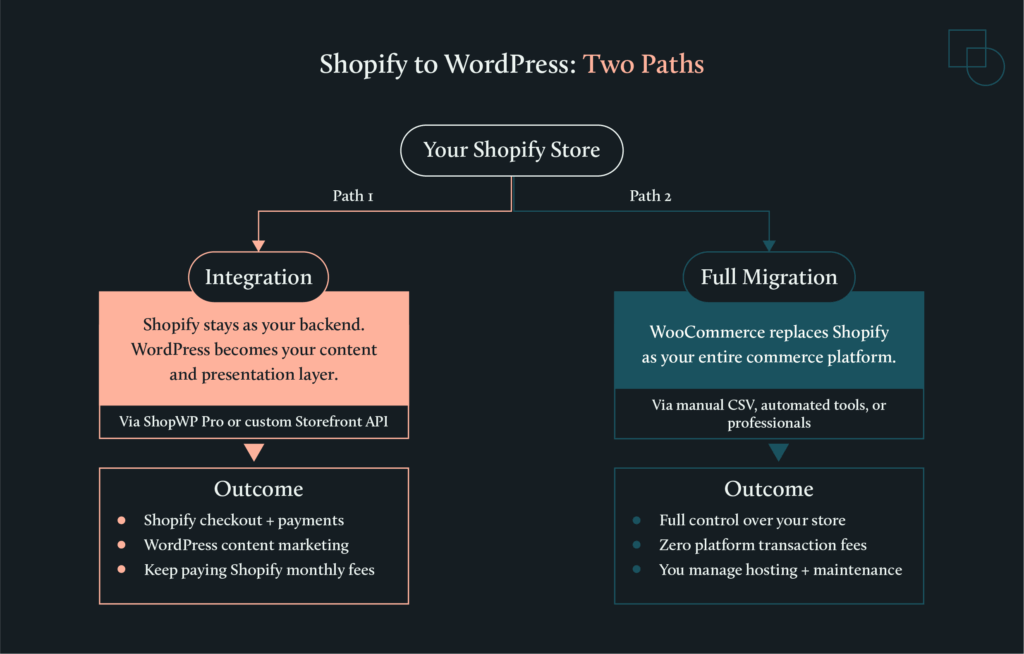
Integration keeps Shopify as your backend engine. Shopify handles your checkout, payments, inventory, and order management. WordPress becomes your content layer, giving you access to its advanced blogging and CMS tools to present your products alongside long-form content.
Migration is a total move. You export your data from Shopify and import it into WooCommerce. Once the move is finished, WooCommerce becomes your entire commerce platform. You gain full control over every part of your store and eliminate Shopify’s monthly platform fees, but you take on the responsibility of managing your own hosting and maintenance.
Methods to migrate or integrate Shopify with WordPress:
- Integration: Use the ShopWP Pro plugin to display products on WordPress while keeping Shopify for inventory management and secure checkout. (Note: Shopify’s official Buy Button has been deprecated and is no longer reliable. Shopify also has a native plugin that lets you sell on WordPress, where Shopify handles the backend checkout, and WordPress is the frontend CMS. However, this plugin is not very well-rated by existing Shopify users.)
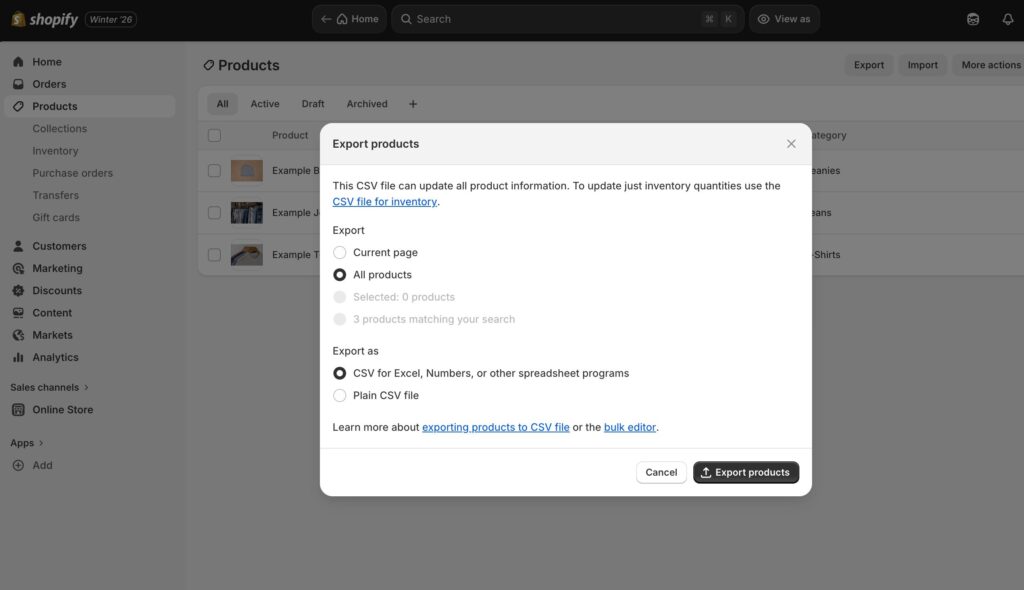
- Manual Migration: Export your products, customers, and orders from Shopify via CSV and use WooCommerce’s built-in importer to move data for free.
- Automated Migration: Use tools like Cart2Cart or LitExtension to transfer standard store data in a few hours for a small fee.
- Professional Help: Hire vetted developers for complex stores with custom apps or high stakes to ensure a fixed-estimate, risk-reduced transition.
When each path makes sense
Choosing between these two depends on your business goals, your technical comfort level, and your annual revenue.
Integration fits when:
- You want WordPress for content marketing, but Shopify’s checkout and payment handling work well for you.
- You prefer managed infrastructure and don’t want to handle server security or software updates.
- Your store is running smoothly and isn’t hitting any of Shopify’s technical or design limitations.
- Your annual revenue is under $50,000. At this level, Shopify’s convenience usually outweighs the cost of its monthly fees.
Migration to WooCommerce fits when:
- You want to eliminate platform transaction fees. Shopify charges between 0.5% and 2% on every sale unless you use Shopify Payments. WooCommerce has zero platform fees, meaning you only pay your payment gateway’s standard rates.
- You have high revenue, such as $100k per month. At this scale, the savings from removing transaction fees can pay for the entire migration and your monthly hosting costs.
- You need deeper customization that Shopify themes and apps cannot provide. WooCommerce is open source, so you can modify any part of the code to build custom features or integrate with any third-party system.
- You want content and commerce on one platform. If SEO and blogging drive your sales, having one admin area for everything simplifies your daily work.
- You want total ownership and portability. With WooCommerce, you own your data and can switch hosting providers whenever you want. On Shopify, the platform controls your store’s environment, and if they change pricing or policies, your options are limited.
- You sell products with complex compliance requirements. CBD, vape, alcohol, firearms accessories, and supplements are allowed on Shopify but face significant restrictions, including mandatory attestations, Shopify Payments exclusions, and strict labeling rules. WooCommerce has no platform-level restrictions, giving you full control over compliance decisions (though payment processors and hosting providers may have their own policies).
To put this into perspective, imagine a small brand that is happy with Shopify’s secure checkout but feels frustrated because it can’t create the long-form articles it needs to rank on Google. For them, integration is the better move.
On the other hand, an established store paying over $200 per month in Shopify app fees, fighting against rigid design limits, and wanting to fully own their platform, should choose migration.
Method 1: Connecting Shopify to WordPress
Shopify-WordPress integration displays your Shopify products on a WordPress site while Shopify handles checkout, inventory, and order management. This lets you use WordPress’s content management strengths without giving up Shopify’s commerce infrastructure.
How to connect
The official “Shopify” plugin for selling on WordPress is not very well-rated, and the Shopify Buy Button, which relied on Shopify’s JavaScript Buy SDK, has become increasingly unreliable.
Shopify deprecated the Buy SDK’s underlying Checkout APIs, with critical functionality breaking as of July 2025. Many merchants report issues with altered code, cart persistence problems, and checkout failures.
The reliable option, at the time of writing this article, is ShopWP Pro, a third-party plugin that uses Shopify’s Storefront API rather than the deprecated Buy SDK. ShopWP Pro is now premium-only (the free version was discontinued years ago), with pricing starting at $199/year for a single site.
Here is the general process to get your store connected:
- Purchase and install ShopWP Pro: Download the plugin and install it on your WordPress site.
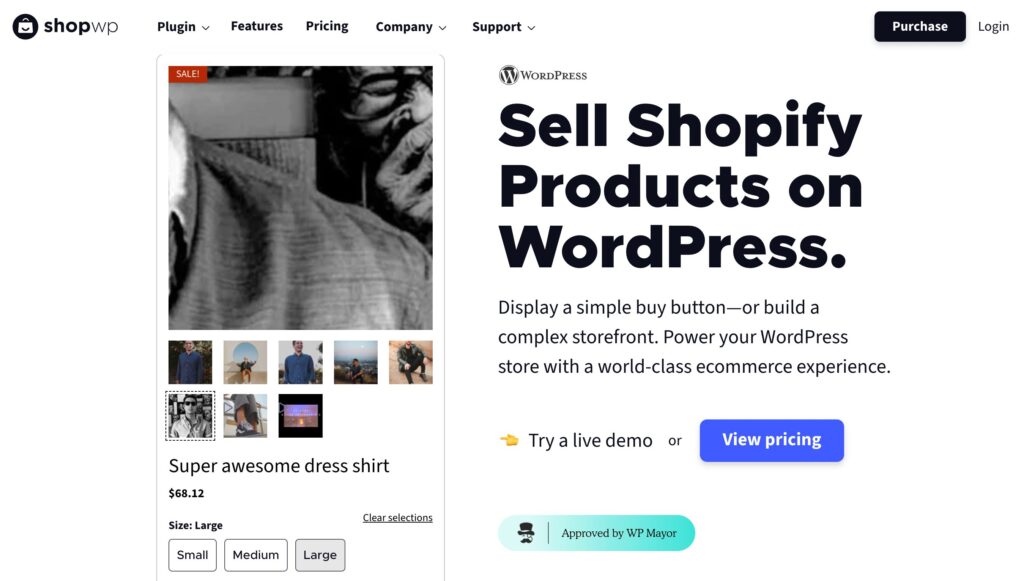
- Connect your Shopify store: Navigate to ShopWP Pro > Connect within the WordPress dashboard. This will initiate the process to connect the Shopify store as your backend.
- Install the ShopWP app on Shopify: Confirm the installation and click the ‘Connect Site’ button. Enter your WordPress site’s domain and confirm the connection. Go back to your WordPress site to check if the connection is successful. You should see the Shopify store name if the connection is active.
- Sync your products and data: ShopWP pulls all your product data from Shopify, including collections, variants, tags, images, metafields, etc., and stores it in WordPress. You can sync all products as a one-time activity or set up syncing at regular intervals.
- Display products on your site: Use ShopWP’s multiple display options, such as the Layout Builder, Gutenberg blocks, or shortcodes, to insert products and collections into your pages and posts.
Your Shopify store stays live throughout the entire setup. There is no downtime, so you won’t miss out on sales while you build your new frontend.
Headless commerce option
For brands that need total creative freedom or have development resources, you can use a “headless” architecture with Shopify’s Storefront API directly. In this setup, Shopify acts strictly as your product database and checkout engine, while WordPress serves as a fully custom presentation layer.
This method bypasses plugins entirely. Your developers write custom code to fetch product data from Shopify’s Storefront API and display it however you want on WordPress. It offers the highest level of speed and creative control, but it requires professional developer resources and ongoing maintenance.
| When headless makes sense: You have an in-house development team or budget for custom development. You need a highly customized storefront that plugins can’t achieve. You’re a large, content-heavy brand where performance is critical. You want to avoid plugin dependencies and subscription fees. | When ShopWP is the better choice: You want a working integration without custom development. Your budget doesn’t support ongoing developer maintenance. You need to launch quickly. Standard product display layouts meet your needs. |
Subdomain or main domain?
Before you launch your integrated site, you need to decide where your store will live. This decision affects your SEO.
- Subdomain (shop.yourdomain.com): This is often easier to set up technically. However, search engines may treat the subdomain as a separate entity, which can split your domain authority and make it harder to rank.
- Main domain (yourdomain.com/shop): Keeping everything on your main domain concentrates your SEO value in one place. It requires more careful URL planning to avoid technical conflicts, but it is generally better for long-term growth.
Method 2: Full migration to WooCommerce
A full migration exports your store data from Shopify and imports it into WooCommerce, which becomes your entire commerce platform. This is an “all-in” transition that gives you complete control, but it requires a clear plan to ensure you don’t lose data or revenue along the way.
What transfers and what you’ll rebuild
Data migration is rarely a clean “copy-paste” because Shopify and WooCommerce organize information using different database structures. You need to know what moves automatically and what requires a fresh start.
These items transfer reliably:
- Products: Your basic item details, descriptions, and categories move over, though images and variants need careful mapping.
- Customer records: Names, emails, addresses, and phone numbers transfer easily.
- Order history: Your past sales move over as records, though internal database IDs may change to avoid conflicts with existing WordPress content.
- Reviews: These can move if you export them from your current review app and import them into a compatible WooCommerce plugin.
These items require rebuilding:
- Customer passwords: Shopify uses proprietary encryption (hashing) that WordPress cannot read. You cannot migrate passwords. Plan a “welcome to our new site” email campaign asking customers to reset their passwords on first login.
- Payment and shipping settings: These configurations must be set up from scratch within the WooCommerce settings panel.
- Theme and design: Shopify themes use the Liquid templating language. WordPress themes use PHP. The two are incompatible, so you cannot export a Shopify design. You will need to choose a new WooCommerce theme and customize it to match your brand. Lightweight themes like Astra or GeneratePress are good starting points for stores migrating from Shopify’s Dawn theme. Stores using feature-heavy themes like Impulse may find Shoptimizer or Flatsome to be closer equivalents.
- App functionality: You must find reliable WooCommerce plugin equivalents for any Shopify apps you currently use.
These items never transfer automatically:
- Custom Shopify app data, specialized product configurators, and proprietary data models require professional help to move.
| Data Type | Status | Notes |
| Products & descriptions | ✅ Transfers | Basic product data moves reliably via CSV or automated tools. |
| Product images | ✅ Transfers | May require re-linking to variants in some cases. |
| Categories & tags | ✅ Transfers | Maps to WooCommerce product categories and tags. |
| Product variants | ✅ Transfers | Requires careful column mapping in manual CSV imports. |
| Customer records | ✅ Transfers | Names, emails, addresses, phone numbers move easily. |
| Order history | ✅ Transfers | Imports as records; internal IDs may change. |
| Reviews | ✅ Transfers | Export from review app → import to plugin. |
| Customer passwords | ⚠️ Rebuild | Shopify uses proprietary hashing – WordPress cannot decrypt. All customers must reset on first login. |
| Payment gateway setup | ⚠️ Rebuild | Configure from scratch in WooCommerce settings. |
| Shipping configuration | ⚠️ Rebuild | Recreate zones, rates, and rules in WooCommerce. |
| Theme & design | ⚠️ Rebuild | Shopify Liquid ≠ WordPress PHP. Choose a new theme and customize. |
| App functionality | ⚠️ Rebuild | Find WooCommerce plugin equivalents (e.g., Recharge → WooCommerce Subscriptions). |
| Tax rules & settings | ⚠️ Rebuild | Set up tax classes and rates in WooCommerce or use a tax plugin. |
| Custom Shopify app data | ❌ Never transfers | Requires professional custom development. |
| Product configurator logic | ❌ Never transfers | Must be rebuilt from scratch in WooCommerce. |
| Proprietary data models | ❌ Never transfers | Requires professional help to recreate. |
| Shopify Flow automations | ❌ Never transfers | Recreate using WooCommerce automation plugins or custom code. |
| Gift card balances | ❌ Never transfers | Manual process required; consider honoring balances separately. |
| Loyalty points / rewards | ❌ Never transfers | Export data and import into a WooCommerce loyalty plugin. |
Manual CSV import
Manual CSV migration is the free method of moving data from Shopify to WooCommerce. It is best for small catalogs with under 500 products, tight budgets, and owners who have time to spare.
Shopify to WordPress manual migration process:
- Export your products, customers, and orders from the Shopify Admin as CSV files.
- Use the built-in product importer in WooCommerce (found under Products → Import) to map Shopify’s column headers to WooCommerce’s fields.
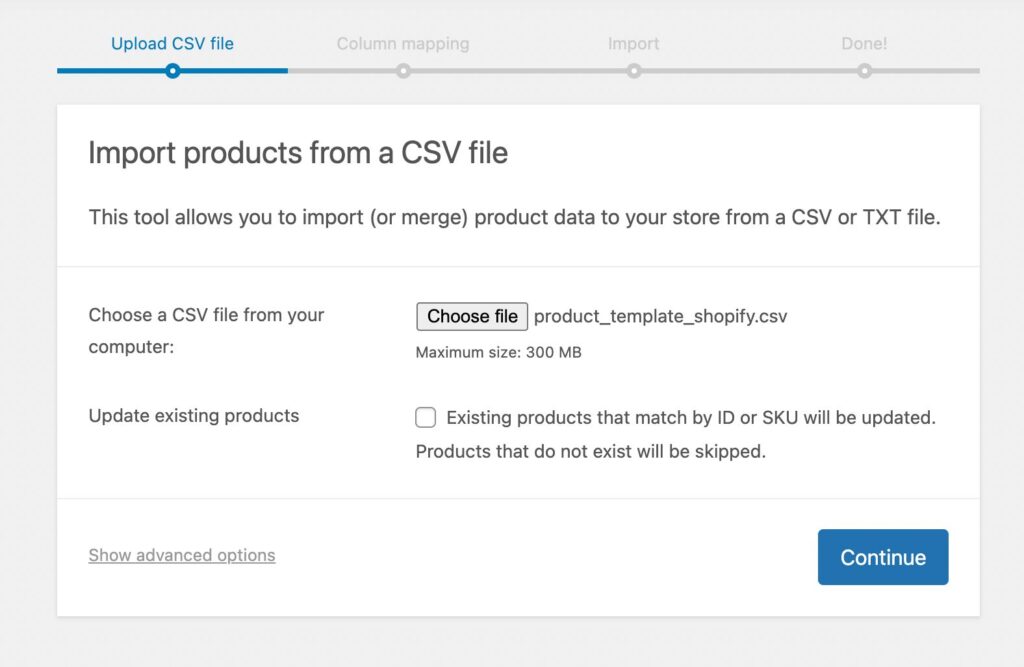
- Note that Shopify uses different header names. For example, “Body (HTML)” maps to “Description” and “Option1 Value” maps to “Attribute 1.”
Challenges: Expect significant manual work to fix issues with product variants, custom fields, and images that don’t link correctly to specific variants.
Timeline and cost: This can take days or weeks of manual cleanup, depending on your store’s size. The cost is free in terms of money, but it will require a significant amount of your time.
Automated migration tools
Automated migration tools are the standard choice for stores with a typical setup that want to move quickly without custom development work.
How to migrate Shopify to WordPress with automated tools
Services like Cart2Cart or LitExtension connect to both platforms via API to handle the technical data transfer while your Shopify store stays live.
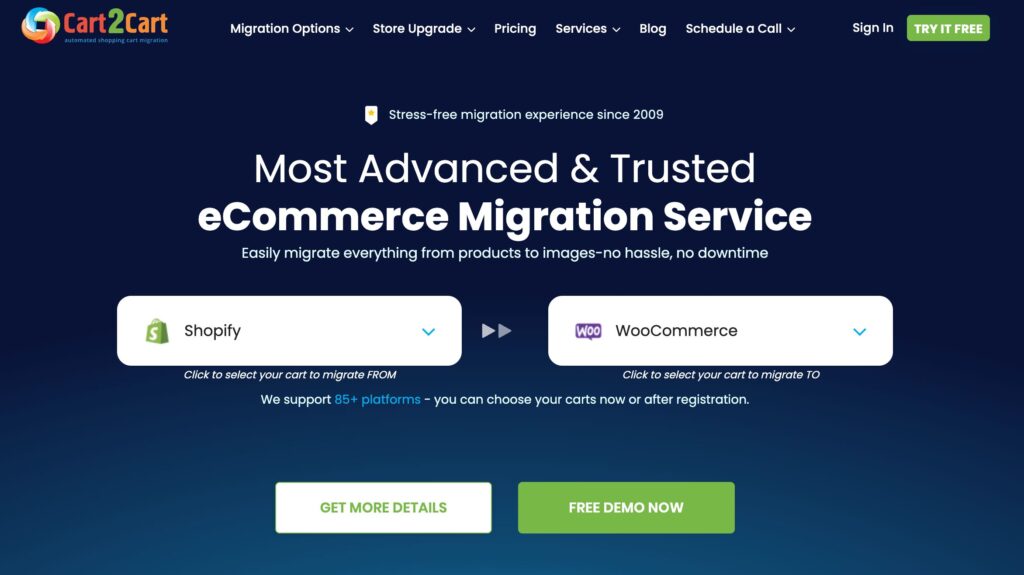
- What they handle: These tools move products, customers, orders, categories, reviews, and CMS pages.
- What they miss: They cannot move your theme design, custom app data, or payment configurations.
- Timeline and cost: The migration itself takes a few hours, though you still need time for testing. Costs typically range from $69 to $300, depending on the volume of data.
💡Tip: Most automated tools offer a free demo migration. Run the demo first to verify your data transfers correctly before committing to a paid migration.
Professional migration
A professional migration is best for complex stores where the cost of a technical failure is much higher than the developer’s fee. You should seek expert migration help if you use custom Shopify apps, have intricate data models, or lack the technical resources to manage the move yourself.
When hiring for a migration of this scale, you generally have three options:
- Open freelancer marketplaces (like Upwork or Fiverr) offer rates from $15 to $75 per hour, but the quality is unpredictable. You carry the risk of vetting the developer yourself, and there is often no post-project warranty.
- Full-service agencies provide project management, redundancy, and formal processes, but budgets typically start at $5,000 and can exceed $50,000 for enterprise projects.
- Vetted developer platforms like Codeable sit in between. You get access to pre-screened WooCommerce specialists at $80 to $120 per hour, with fixed-price estimates instead of open-ended hourly billing. Escrow protection and a 28-day warranty are built into the process, reducing your project risk.
Red flags when hiring: Be cautious of any developer who cannot clearly explain their migration process, lacks a portfolio of similar WooCommerce projects, or refuses to provide a fixed-price estimate.
Codeable’s WooCommerce migration packages include:
- Basic Store Migration: Starting at $2,000 for smaller stores moving from another platform.
- Advanced Store Migration: Starting at $4,000 for established stores with large catalogs and complex requirements.
- Custom Enterprise Migration: Custom quoting for large marketplaces or complex e-commerce operations.
- 1-hour Consultation: For $69, you can discuss your specific needs with a vetted WooCommerce developer before committing to a path.
All of these professional options include fixed pricing, escrow protection, and a quality guarantee.
Protecting your SEO and domain
SEO preservation during a Shopify-to-WordPress migration requires 301 redirects that map every old URL to its new WordPress equivalent. Without this step, every link indexed by Google will return a 404 error, and your search rankings can drop overnight.
Preserving rankings
Ranking loss usually happens because of broken redirects, changed URLs that aren’t mapped properly, site downtime, or slower page speeds. Because Shopify enforces a rigid directory structure (like /products/product-name) and WordPress permalinks are fully customizable (like /product/product-name), your links will almost certainly change.
To keep your traffic safe, follow these steps:
- Create a redirect map: Build a complete list mapping every old Shopify URL to its new WordPress equivalent before you launch. Crawl your existing Shopify site to ensure you capture every live URL.
- Use 301 redirects: Implement permanent 301 redirects, which tell Google that your pages have moved for good and to transfer their ranking power to the new links. Use a WordPress plugin like Redirection or add rules to your .htaccess file.
- Maintain metadata: Ensure your page titles and meta descriptions stay consistent or improve during the move. An SEO plugin like Yoast SEO or Rank Math gives you direct control over this.
- Test every link: Thoroughly test your redirects and monitor Google Search Console for any crawl errors in the weeks after going live.
- Match Shopify’s speed: Shopify provides a highly optimized, cached hosting environment. To maintain equivalent performance on WordPress, use quality managed hosting from providers like Kinsta or WP Engine. Budget $30 to $100 per month for hosting that keeps your page speed competitive.
Transferring your domain
You can keep your domain name when you leave Shopify. The process depends on where you bought it.
If you purchased your domain through Shopify, you will need to:
- Unlock the domain before you cancel your subscription.
- Get an authorization code and enter that code at your new domain registrar to begin the move.
- Watch for the 60-day lock. ICANN rules prevent you from transferring a domain if you bought or moved it in the last 60 days.
- Use a workaround if locked. If you are within the lock period, you can still launch your site by updating the DNS A records in Shopify to point to your new WordPress host. The domain stays registered with Shopify, but traffic flows to your new site.
🚨Important: Do not cancel your Shopify subscription until your domain transfer is fully complete. You need admin access to manage DNS records during the transition.
If your domain is already registered elsewhere (like Namecheap or GoDaddy), the process is simpler: just update your DNS records to point to your new WordPress hosting provider.
Costs: Shopify vs. self-hosted WooCommerce
WooCommerce software is free to download, but running a professional store requires hosting, extensions, and maintenance that replace Shopify’s bundled subscription. You are moving from a predictable monthly “tax” model on Shopify to a capital-heavy ownership model on WordPress.
Ongoing costs
Your monthly expenses will change depending on which platform you choose. Shopify offers convenience through managed services. WooCommerce offers lower fees in exchange for more responsibility.
| Cost item | Shopify | WooCommerce |
| Software/subscription | $39–$399+/month (not including Plus) | $0 (open source) |
| Hosting | Included | $30–$100+/month (managed hosting) |
| Transaction fees | 2.9% + 30¢ (+0.5%–2% if external gateway) | 2.9% + 30¢ (0% platform fee) |
| Key plugins/apps | ~$20–$50/month each | ~$75–$300/year each |
| Security and SSL | Included | Included in managed hosting |
| Maintenance | $0 | Variable (based on developer time) |
Note: These are recommended price ranges for typical small-to-midsize stores.
For small-to-medium-sized stores, Shopify’s convenience typically outweighs its fees. For stores with high transaction volumes and high earnings, the savings from eliminating Shopify’s transaction fees can be significantly high enough to cover the migration, hosting, and ongoing developer costs.
Migration costs
The cost to move your data depends on your store’s complexity and how much of the work you are willing to do yourself.
- Manual migration: Free in terms of money, but requires a significant investment of your own time to map columns and clean up data.
- Automated tools: Services like Cart2Cart generally cost between $69 and $300, with the price scaling based on the number of products and customers you move.
- Professional migration: For complex stores, hiring an expert is the safest route. Codeable projects typically use rates of $80 to $120 per hour, with basic store migrations starting around $2,000.
Hidden costs to budget for
Beyond the obvious migration fees, there are several costs that can catch store owners off guard if they aren’t prepared.
- Theme customization: You will need to spend time or money adjusting a new WordPress theme to match your existing brand identity.
- Plugin configuration: Setting up new WooCommerce equivalents for your old Shopify apps takes technical effort. Advanced features such as subscriptions or bookings incur separate licensing costs.
- Testing and QA: Budget time to test your checkout flow, shipping rules, and payment gateways on multiple devices. Check product display across browsers, verify customer account access, and confirm that order history is accurate.
- Post-launch fixes: Set aside a small contingency budget for any minor bugs or layout issues that appear in the first two to four weeks after launch. Most migration problems surface in this window.
Post-migration checklist
A successful launch does not end when your new site goes live. Use this checklist to verify everything is working correctly in the first weeks after migration.
- Test checkout flow: Complete a test purchase from start to finish on both desktop and mobile.
- Verify payment gateways: Confirm your payment processor is accepting and settling transactions correctly.
- Check product display: Review product images, variants, descriptions, and pricing across multiple browsers and devices.
- Confirm customer accounts: Verify that customers can create accounts, reset passwords, and view their order history.
- Monitor redirects: Watch Google Search Console for 404 errors and fix any broken redirects immediately.
- Review site speed: Run your new site through Google PageSpeed Insights and compare it to your old Shopify site’s performance. Address any issues with your hosting provider.
Support expectations vary depending on how you migrated. Automated tools typically provide limited support tickets. Unvetted freelancers may offer no post-launch support unless contracted separately. Codeable includes a 28-day warranty covering scope-related bugs. Full-service agencies typically include one to three months of post-launch support.
Next steps
Both paths, integrating Shopify checkout into WordPress or migrating fully to WooCommerce, require a clear plan to avoid technical pitfalls like broken SEO links or corrupted data.
If your store uses custom apps, specialized product configurators, or complex data models, attempting to handle the move in-house can lead to costly errors.
For these high-stakes projects, working with a professional WordPress developer ensures your migration is planned with precision and delivered with fixed estimates.
Not sure which path fits? A $69 consultation lets you talk through your requirements with an experienced WooCommerce developer before committing. All Codeable packages come with escrow protection, a quality guarantee, and a 28-day warranty.
Ready to start your move? Explore Codeable’s WooCommerce migration packages.

30 000+ businesses of every shape and size have already trusted us to hire WordPress developers and scale their growth.
 Dream It