



A WordPress SEO audit is a structured review of your site’s technical health, performance, content quality, and architecture. Its purpose is to identify why your rankings or traffic aren’t where you expect them to be, and to build a prioritized plan for fixing what you find.
This guide covers what a complete audit includes, from crawlability checks to content analysis. It walks through methods for conducting one, whether you’re running plugin scans or working with an expert who interprets the data for you. And it explains the standard process professionals use to sequence fixes so each improvement builds on the last.
The steps here apply whether you’re running the audit yourself or evaluating what a specialist delivers. The goal isn’t a one-time checklist you forget about. It’s a repeatable system tied to measurable outcomes, which helps you understand why green lights in your SEO plugin can coexist with flat rankings and what to do about it.

Get matched with the developer
that is perfect fit for your WordPress or WooCommerce needs.
Start a project
What a WordPress SEO audit consists of
A complete WordPress SEO audit evaluates four interconnected layers: technical foundation, site speed, content quality, and site architecture. Each layer depends on the one before it. Fixing content issues while crawling problems persist means search engines may never see your improvements. Optimizing internal links before consolidating thin pages just redistributes weak signals.
This dependency chain also explains a common frustration: your SEO plugin shows green lights everywhere, yet traffic stays flat. Plugins check individual pages. They can’t diagnose site-wide patterns. Crawl waste from WordPress-generated archives goes undetected. Plugin conflicts that silently change your indexing rules won’t trigger a warning. Content cannibalization, where multiple posts compete for the same search term, stays invisible. REST API endpoints consuming crawl budget on large sites never get flagged.
Technical foundation: crawling and indexing
The audit starts here because nothing else matters if search engines can’t find your pages. This layer examines how search engines discover and process your site, including:
- Robots.txt configuration. Misconfigured rules can accidentally block important pages or waste crawl budget on irrelevant ones.
- XML sitemap accuracy. Your sitemap should list pages you actually want indexed, not outdated URLs, redirects, or pages marked noindex.
- Noindex settings across post types. WordPress lets you apply noindex rules to entire content types, such as tags, author archives, or attachment pages. The audit verifies these settings match your intent.
- Redirect chains. When one redirect points to another, which points to another, the chain wastes crawl budget and dilutes link equity.
- Canonical tags and domain resolution. Conflicting canonicals cause duplicate content issues, and your site should resolve all versions (http, https, www, non-www) to a single canonical URL.
WordPress often has specific issues that generic audits miss. Plugin conflicts can create competing meta robots rules. Sitemap bloat from auto-generated archives and attachment pages inflates your sitemap with low-value URLs. On larger sites, REST API endpoints and XML-RPC can consume crawl budget meant for your actual content.
Speed and Core Web Vitals
Google uses Core Web Vitals as a ranking signal, and visitors abandon slow pages before they see your content. The audit measures performance against three metrics:
- Largest Contentful Paint (LCP) measures how quickly the main content loads. Good LCP happens within 2.5 seconds.
- Cumulative Layout Shift (CLS) measures visual stability when late-loading elements push content around. A score below 0.1 is good.
- Interaction to Next Paint (INP) measures responsiveness when someone clicks or taps. Good INP is under 200 milliseconds.
WordPress-specific factors that shape these metrics include hosting and TTFB (shared hosting often struggles under traffic spikes), caching configuration (page caching and object caching via Redis or Memcached), theme and page builder overhead that loads unused CSS and JavaScript on every page, and uncompressed images, which are the most common cause of slow LCP.
Database bloat deserves particular attention. The wp_options table stores autoloaded settings retrieved on every page load. The wp_posts table accumulates revisions that slow down crawling and admin tasks. The wp_postmeta table often contains orphaned metadata from deleted plugins.
Content quality and cannibalization
Content cannibalization happens when multiple posts compete for the same keyword. Instead of one strong page ranking well, several weaker pages split the signal. The audit cross-references your content against Search Console data to identify queries where multiple URLs appear, or rankings fluctuate as Google switches between competing pages.
WordPress creates duplicate content issues that site owners often overlook. Category and tag archives generate pages with content that overlaps your main posts. Attachment pages, created for every uploaded image, are indexed by default despite having almost no content. Pagination splits archive pages across numbered URLs that search engines may treat as duplicates without proper canonical handling.
The audit also evaluates E-E-A-T signals (Experience, Expertise, Authoritativeness, Trustworthiness), checking whether author bios exist, sources are cited, and content delivers genuine value beyond keyword targets.
Site architecture and internal linking
Site architecture is the hierarchical structure of pages, navigation paths, and internal links that determines how authority flows through your site.
This layer evaluates how authority flows through your site. The audit examines orphan pages with no internal links pointing to them, click depth (pages buried four or more clicks deep signal lower importance to search engines), navigation structure alignment with business goals, and breadcrumb implementation for both user orientation and search engine context.
Many WordPress sites have weak internal linking because themes don’t promote content discovery by default. The audit identifies opportunities to add contextual links, connect pillar pages to supporting content, and direct internal links toward your most valuable pages.
Additional audit layers
Depending on your site’s goals, the audit may extend further.
- Schema markup review checks for validation errors, plugin conflicts, and missing structured data types that could qualify pages for rich results.
- Mobile usability testing evaluates tap targets, form functionality, and conversion points on actual devices.
- Backlink profile analysis assesses link quality patterns, flags potentially toxic links, and identifies broken outbound links.
- Behavioral analysis uses heatmaps and session recordings to reveal why users bounce, where they click, and how far they scroll, connecting technical findings to real user behavior.
Methods for conducting a WordPress SEO audit
Knowing what an audit covers is one thing. Deciding how to actually run one is another. You have three main options, each with different costs, time requirements, and depth of analysis. The right choice depends on your site’s complexity, your technical comfort level, and how much is at stake if something goes wrong.
Plugin-based scans
A plugin-based scan is an automated check performed by WordPress SEO plugins like Yoast, Rank Math, and AIOSEO. These tools provide on-page analysis, meta tag management, and basic site health checks that are valuable for day-to-day optimization. They catch missing meta descriptions, flag readability issues, and remind you to add alt text to images. For routine content publishing, they’re genuinely useful.
But plugins have significant blind spots. They check pages, but they don’t diagnose sites.
What plugin-based scans miss:
- Site-wide crawl patterns. Plugins can’t see how Googlebot moves through your site or where crawl budget gets wasted.
- Plugin conflicts. When two plugins create competing rules, such as one setting noindex while another sets index, your SEO plugin won’t flag it.
- Internal linking gaps. Plugins don’t map your site structure or identify orphan pages disconnected from the rest of your content.
- Core Web Vitals failures tied to hosting or themes. Your plugin might suggest optimizing images, but it can’t diagnose whether your slow LCP stems from server response time or theme bloat.
- Content cannibalization. Plugins analyze one page at a time. They have no view into whether five of your posts compete for the same keyword.
- User behavior signals. No plugin tracks rage clicks, scroll depth, or why visitors bounce from your highest-traffic pages.
Tool-assisted DIY audits
A tool-assisted DIY audit is a manual review that combines multiple external tools to catch issues plugins miss. Google Search Console provides indexing data and identifies crawl errors. Screaming Frog crawls your site the way search engines do, revealing redirect chains, broken links, and duplicate content. PageSpeed Insights measures Core Web Vitals against real user data.
Running these tools yourself gives you far more visibility than any single plugin. You can export crawl data, cross-reference it with Search Console queries, and identify specific URLs causing problems.
The limitation is interpretation. Tools provide data, but understanding what matters requires context. Screaming Frog might flag 200 issues, but which ten actually affect your rankings? Which can you safely ignore? That prioritization takes experience.
Tool-assisted DIY audits work well for:
- Sites under 50 pages where complexity is manageable.
- Site owners with technical comfort who can interpret crawl reports.
- Limited budgets where time is more available than money.
Expert-led audits
Professional audits use the same tools but add human interpretation, WordPress-specific diagnosis, and strategic prioritization. An SEO expert doesn’t just flag that your TTFB is slow; they identify whether the cause is hosting, database bloat, or a specific plugin and recommend the right fix.
This level of analysis becomes necessary when issues move beyond what you can solve from the WordPress dashboard. Database optimization often requires direct SQL queries. Theme evaluation means understanding how your template loads assets and whether switching would actually improve performance. Complex migrations need redirect mapping that preserves years of link equity.
Expert-led audits are appropriate for:
- Sites with heavy customization or custom post types.
- Plugin complexity where conflicts are likely.
- Business-critical traffic where mistakes cost revenue.
- Situations requiring diagnosis that automated tools can’t provide.
Professional audits deliver prioritized recommendations, explain why each issue matters, and often include walkthrough calls so you understand exactly what needs to happen next.
How to run a WordPress SEO audit
If you’re conducting your own audit, a clear sequence matters more than checking every possible item. The steps below follow the same order professionals use, and the process assumes you have access to Google Search Console, a crawling tool like Screaming Frog, and PageSpeed Insights.
Set aside a few hours for this. Rushing through an audit produces a messy list of issues with no sense of priority. Taking your time lets you document findings properly, group related problems together, and spot patterns that only emerge when you look at data across your whole site.
Step 1: Set up your tools and gather baseline data
Start in Google Search Console. Export your current indexing status from the Pages report and pull a list of queries you’re ranking for from the Performance report. This baseline gives you a reference point to measure improvements against.
Configure Screaming Frog to check response codes, canonical tags, meta robots directives, and page titles. If you have the paid version, connect the Google Analytics and Search Console APIs before crawling. This lets you cross-reference technical issues with actual traffic data to identify which errors affect revenue-generating pages.
Step 2: Audit crawlability and indexing
Run your crawl and work through these checks:
- Site operator search. Type site:yourdomain.com into Google to see what’s actually indexed. Look for pages that shouldn’t be there and note any important pages that seem missing.
- Search engine visibility. In WordPress, go to Settings > Reading and confirm “Discourage search engines from indexing this site” is unchecked.
- Robots.txt review. Check yourdomain.com/robots.txt for blocked resources. CSS and JavaScript should be crawlable.
- XML sitemap validation. In Search Console, review URLs that are “Submitted but not indexed” or “Excluded by noindex tag.”
- Redirect chains. Filter crawl results by 3XX status codes and flag any redirect pointing to another redirect.
- Domain resolution. Test all URL versions (http, https, www, non-www) to confirm they resolve to a single canonical version.
Enable near-duplicate detection in your crawl settings to catch cannibalization issues.
Step 3: Evaluate speed and Core Web Vitals
Run PageSpeed Insights on your homepage, top landing pages, and conversion pages. Prioritize field data over lab data, as field data reflects real user experience from actual visitors.
For failing metrics, trace WordPress-specific causes:
- Poor LCP. Check hero image size, server response time, and hosting quality.
- CLS failures. Look for images without dimensions, late-loading fonts, and ad units that inject after page load.
- INP issues. Review JavaScript from themes, plugins, and third-party scripts like chat widgets.
If TTFB is slow across your site, check database health. Post revisions and expired transients accumulate over time and drag down response times.
Step 4: Review content and internal linking
In Search Console’s Performance report, look for pages competing for the same queries—this signals cannibalization. Filter for keywords ranking positions 2 through 15 to identify “striking distance” opportunities where minor improvements might push you onto page one.
From your crawl data, identify:
- Orphan pages with no internal links pointing to them.
- Deep pages beyond four clicks from the homepage.
- Thin archives from tags, categories, or attachment pages.
Check that high-priority pages receive internal links from your strongest content.
Step 5: Check schema, mobile, backlinks, and user behavior
Run key pages through Google’s Rich Results Test to validate schema markup and catch conflicts between theme and plugin output.
Test mobile usability on actual devices to check tap target spacing, form functionality, and CTA visibility above the fold.
If backlinks are a concern, run your domain through Ahrefs or SEMrush. Look for patterns rather than individual links, and check for broken outbound links on your own site.
If you have heatmap tools like Hotjar or Microsoft Clarity, review high-traffic pages for rage clicks, scroll drop-off points, and ignored CTAs. This behavioral data reveals friction that technical audits miss.
Mobile usability testing
Don’t rely on desktop browser simulations. Test your site on actual phones and tablets.
Check these elements on real devices:
- Tap targets. Buttons and links need enough spacing that users can tap them accurately. If your menu items sit too close together, mobile visitors will hit the wrong link.
- Form functionality. Fill out your own contact forms and checkout flows on mobile. Test whether keyboards appear correctly, required fields validate properly, and submission actually works.
- CTA visibility. Can users see your call-to-action buttons without scrolling? On mobile, above-the-fold space is limited. Important conversion points need to appear early.
Backlink profile analysis
If link quality is a concern, run your domain through Ahrefs or SEMrush. The goal isn’t to review every individual link, because that’s impractical for most sites. Instead, look for patterns. Are your links coming from relevant sites in your industry, or from random directories and unrelated blogs? Is your anchor text distribution natural, or does it look manipulated?
Flag potentially toxic links if you see clusters from spammy sources, but don’t panic over a few low-quality links. Google is generally good at ignoring these. The disavow tool exists for serious problems, not routine cleanup.
While you’re checking backlinks, also review broken outbound links on your own site. Links pointing to pages that no longer exist create a poor user experience and can signal neglect to search engines.
User behavior analysis
If you have heatmap tools installed – Hotjar and Microsoft Clarity are popular options – review high-traffic pages for behavioral signals. These tools reveal friction that technical audits miss entirely.
Look for:
- Rage clicks. Users repeatedly clicking on elements that don’t respond usually indicates something looks clickable but isn’t, or a feature is broken or too slow to register.
- Scroll drop-off points. Where do visitors stop scrolling? If most users never reach your CTA at the bottom of the page, that placement isn’t working.
- Ignored CTAs. Buttons with zero or minimal clicks suggest they’re either invisible, confusing, or irrelevant to what visitors actually want.
This behavioral data connects your technical audit findings to real user experience. A page might pass every technical check and still fail to convert because visitors can’t figure out what to do next.
Step 6: Document findings
Compile issues into a single document grouped by audit layer. For each issue, record:
- The specific URL affected. Avoid vague notes like “some pages have slow LCP.”
- The issue itself. “Homepage LCP is 4.2 seconds due to uncompressed hero image” is actionable. “Site is slow” is not.
- The severity. Is this blocking indexation, hurting conversions, or a minor cleanup item?
This document serves as your input for prioritization; without it, audits become scattered notes that might go untouched.
How to prioritize and fix audit findings
An audit flags dozens of issues, sometimes hundreds. The value isn’t in the list itself. It’s in knowing what to fix first and what to ignore entirely.
Without prioritization, most audits stall. Site owners feel overwhelmed by the volume of problems and either tackle items randomly or freeze up and fix nothing. A clear framework turns that list into a sequenced action plan with realistic expectations about what moves your results.
The impact-effort matrix
Map each finding based on the value it delivers versus the resources required to fix it. This creates four categories that guide your decisions.
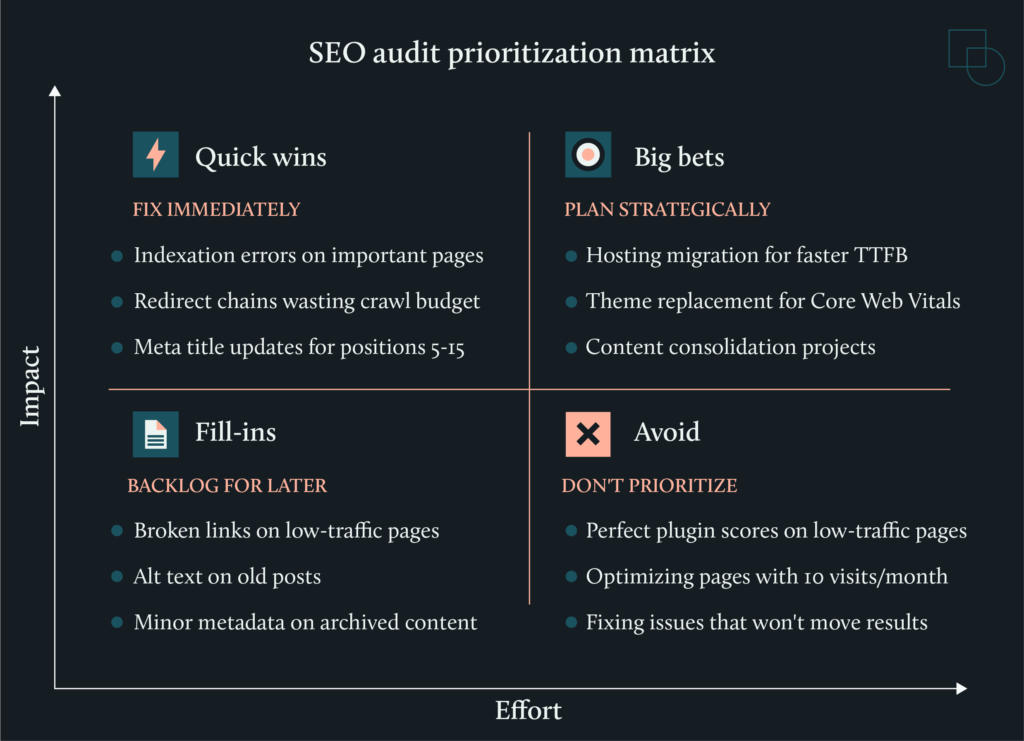
Quick wins (high impact, low effort): Fix these immediately. Examples include indexation errors on important pages, redirect chains wasting crawl budget, and meta title updates for keywords ranking positions 5 through 15.
Big bets (high impact, high effort): Plan these strategically with development and design resources and budget. Examples include hosting migration, theme replacement to fix Core Web Vitals, and content consolidation projects.
Fill-ins (low impact, low effort): Save these for slower periods when priorities are complete. Examples include broken links on low-traffic pages, alt text on old posts, and minor metadata improvements on archived content.
Avoid (low impact, high effort): Skip these entirely, as they pull resources from work that matters. Examples include chasing perfect plugin scores on low-traffic pages and optimizing content that gets ten visits per month.
Standard process for fixing issues
Sequence matters as much as prioritization. Fix foundational issues before dependent optimizations, or you waste effort on improvements that won’t stick.
- Crawlability and indexing first. Resolve robots.txt issues, fix redirect chains, and clean up sitemap errors. Nothing else matters if search engines can’t find your pages.
- Speed and rendering second. Address Core Web Vitals failures, especially LCP and CLS. Once pages are indexed properly, fast load times create the foundation for everything that follows.
- Content and architecture third. Consolidate cannibalized content, add internal links, and fix orphan pages. These changes build on a stable technical foundation.
- Schema and refinements last. Implement structured data, update meta descriptions for CTR, and polish mobile experience. These finishing touches enhance pages already performing at baseline.
For technical changes, such as PHP updates, plugin modifications, and theme adjustments, use a staging environment first. One incompatible plugin update can take down your entire site if pushed live without testing.
Monitoring cadence
Audits are point-in-time snapshots. Your site changes, Google’s algorithms change, and new issues emerge over time. Without ongoing monitoring, problems accumulate until the next audit reveals months of missed opportunities.
Set a monitoring schedule based on your site’s traffic and importance:
- Monthly checks for high-traffic sites. Review Search Console for new crawl errors, indexing drops, or ranking changes. Monitor Core Web Vitals for regressions after plugin or theme updates.
- Quarterly technical crawls to catch issues that develop gradually, such as redirect chains that grow link by link, orphan pages that accumulate as content expands, sitemap bloat as new archives appear.
- Annual full audits or after any major site change. Redesigns, migrations, hosting changes, and major plugin overhauls all warrant a fresh audit to catch problems before they compound.
The goal is catching issues early, when they’re quick wins, rather than letting them grow into big bets that require significant resources to fix.
When to call in experts
DIY audits fit straightforward sites under 50 pages where you have the technical comfort to run crawling tools, interpret the data, and implement fixes yourself. If your site uses standard themes and plugins without heavy customization, and you have the time to work through findings methodically, you can make real progress on your own.
Expert help becomes necessary when issues move beyond what you can solve from the WordPress dashboard, such as:
- Database bloat requiring direct SQL queries to clean up orphaned metadata or excessive post revisions.
- Theme replacement to fix Core Web Vitals failures baked into your current template’s architecture.
- Complex redirect mapping during migrations where years of link equity need preserving.
- Sites with custom post types, heavy plugin dependencies, or configurations where conflicts hide in places automated tools don’t flag.
These scenarios need human judgment that automated tools can’t replicate. Someone has to interpret what the data means for your specific situation and decide which fixes actually matter.
Finding that expertise isn’t straightforward. General SEO agencies often lack WordPress-specific knowledge, while WordPress developers may not understand search algorithms deeply enough to prioritize fixes correctly. You need someone who is technical enough to diagnose database issues and theme conflicts, strategic enough to know which problems actually suppress rankings.
Codeable connects you with vetted WordPress SEO experts who specialize in exactly this kind of work. Every developer on the platform passes a rigorous screening process, and you can review detailed profiles showing completed projects and client feedback before hiring. The single-price estimate model means no bidding wars or hidden costs; you get transparent pricing and direct communication with the specialist handling your audit.
Codeable offers three SEO packages to match different needs:
- Expert SEO Consultation ($59): A one-hour call with an SEO specialist covering your specific questions, competitor analysis, keyword research tips, and immediate steps to improve rankings. Ideal if you need strategic direction before committing to a full audit.
- Local or Small SEO Audit ($499): A complete technical audit for local businesses or sites under 20 pages. Includes Google and Bing Search Console checks, review of broken links, page speed, indexed pages, canonical tags, metadata, schema, Google My Business and citation checks, competitor and keyword research, link audit, and a follow-up call to discuss next steps.
- National or Large SEO Audit ($999): The same thorough analysis for sites with 20+ pages or national reach. Covers full technical review, search console checks, on-page elements, competitor research, link audit, and a consultation call for in-depth insights.
All three options give you expert interpretation and a clear action plan without ongoing retainer commitments.
At the end of the day, whether you run the audit yourself or bring in a specialist, the goal stays the same: identify what’s actually holding your site back and fix those issues in the right order. If your plugin scores look fine but rankings aren’t moving, the answers are usually hiding in site-wide patterns that page-level tools miss.
Start with a Codeable SEO consultation to get expert eyes on your specific situation, or book a full audit for a prioritized roadmap you can act on immediately.

20 000+ businesses of every shape and size have already trusted us to hire WordPress developers and scale their growth.
 Dream It