




Has your WordPress site’s performance noticeably declined? An unoptimized database may be the root cause. Recent studies indicate that neglected databases can lead to significantly slower query response times and difficulties handling concurrent users.
This article provides practical solutions to these challenges. We’ll explore the common causes of slow database performance, guide you through optimization techniques (both manual and automated), and help you determine when and where to seek expert assistance.
Whether you prefer a plugin, the command line, or phpMyAdmin, there’s a method here for every comfort level. Let’s dig in.
Reasons why your WordPress database is slow
The first step towards repairing a slow-running WordPress database is understanding why it’s happening. Here are some common reasons:
Database bloat
Database bloat is like digital clutter. It weighs down your site, making every operation more cumbersome and time-consuming. Over time, your WordPress database can accumulate unnecessary data (post revisions, spam comments, and orphaned metadata), leading to a bloated setup. While these may seem harmless, they can have a significant impact on your site’s performance.
As your database grows, it requires more memory to operate and increases disk input/output operations, which:
- Slows down query execution.
- Hinders the efficiency of database indexes.
- Causes disk contention, where multiple processes compete for disk access, further slowing down your site.
- Affects your site management tasks by making backups and restores take longer to complete.
Inefficient plugins
While plugins are essential for extending WordPress functionality, they can also be a significant source of database slowdowns. Poorly coded or resource-intensive plugins can dramatically increase page load times and consume excessive server resources.
The problem often lies in how these plugins interact with your database. Inefficient plugins may perform an excessive number of database queries for each page load. This flood of queries can overwhelm your database, leading to slower overall performance and increased page rendering times.
The issue isn’t always isolated to a single plugin. Conflicts between incompatible or poorly designed plugins can create a domino effect of performance issues. These conflicts may result in redundant database calls, clashing queries, or even database errors.
Poor hosting configurations
Your WordPress site’s performance isn’t just about what’s happening inside your database – it’s also about where your site lives. Insufficient server resources can significantly impact your site’s speed and functionality.
When your hosting environment lacks adequate CPU power, RAM, or disk I/O capacity, it can lead to slower page load times and overall poor site performance.
Shared hosting environments, while cost-effective, can be particularly problematic. If server settings aren’t properly configured, you might find your site competing for resources with other websites on the same server. This resource contention can result in slower site performance, especially during peak traffic times.
Another critical factor is server caching. Inadequate server caching configurations, or a complete lack of server-side caching, can lead to slower page rendering and increased server load. Without proper caching, your server may need to process the same requests repeatedly, wasting valuable resources and slowing down your site.
Lack of regular maintenance
Consistently neglecting database maintenance can lead to a gradual decline in your site’s speed and responsiveness, potentially impacting user experience and site functionality.
Slow queries or excessive resource usage can go unnoticed without regular check-ups, escalating into more significant problems over time.
Regular maintenance isn’t just about cleaning; it’s about optimization. Failing to optimize your database tables periodically can result in fragmented data and inefficient storage, further degrading performance.
Neglecting updates to WordPress core, themes, and plugins can also contribute to database inefficiencies. Outdated software may use deprecated methods or inefficient database interactions, leading to unnecessary strain on your system.
Resource-intensive queries
The efficiency of your WordPress site’s database queries can make or break its performance. Poorly optimized or inefficient queries can significantly increase execution time and drain server resources, leading to a sluggish user experience.
Complex queries are often the culprits behind database overload. When a query involves multiple joins, subqueries, or large datasets, it can put excessive strain on your database. This strain affects the specific query and slows down your entire WordPress site’s performance.
WordPress functions, while powerful, can also be problematic if used carelessly. For instance, WP_Query, when used with unoptimized parameters, can generate resource-intensive database calls. These calls can accumulate quickly, especially on busy pages, resulting in longer page load times.
Automated Optimization: Using WordPress Plugins
If you’d rather not dig into your database manually, a plugin is the safest starting point. The right tool can automate cleanup tasks, schedule regular maintenance, and handle housekeeping that would otherwise require SQL queries or phpMyAdmin access.
Here are three well-regarded options:
- WP-Optimize: A popular all-in-one tool that cleans your database, compresses images, and caches pages. It can remove post revisions, spam comments, trashed posts, and transient options in one click, and you can schedule cleanups to run automatically.
- Advanced Database Cleaner: Focuses specifically on deep cleaning. It’s particularly good at finding orphaned metadata left behind by deleted plugins – the kind of clutter that standard cleanup tools miss.
- WP-Sweep: A lightweight option that uses native WordPress delete functions rather than direct SQL queries, which makes for a safer, cleaner sweep of unused data.
We recommend providers and tools based on their quality, regardless of any affiliations
Here’s a step-by-step walkthrough using WP-Optimize as an example:
1. Install and activate the plugin.
2. Go to WP-Optimize > Database from the dashboard.
3. Under Optimizations, select the tasks you want to run. Unless you’re an expert, avoid checking anything marked with an exclamation mark. These operations are more intensive and your data might get corrupted if you don’t get it right.

4. With all the operations you want to execute selected, click on Run all selected optimizations.

Manual Optimization Methods
When you need more control than a plugin offers – or you’re managing multiple sites – these hands-on methods let you optimize your database directly.
Important: before using any manual method, always create a fresh backup of your database. One wrong query can cause data loss that’s difficult or impossible to reverse.
Optimizing through phpMyAdmin
phpMyAdmin is a free, open-source, web-based tool that provides a graphical user interface for managing MySQL databases. It lets you easily manage and manipulate your WordPress database without writing complex SQL queries.
With phpMyAdmin, you can access and edit your WordPress database tables, categorized as follows:
- Posts: wp_posts and wp_postmeta
- Comments: wp_comments and wp_commentmeta
- Terms: wp_terms, wp_term_relationships, wp_term_taxonomy, and wp_termmeta
- Users: wp_users and wp_usermeta
- Links: wp_links
- Options: wp_option
How you access and use phpMyAdmin to optimize your database varies between hosting providers and control panels. Here’s how to do it through cPanel:
1. From the cPanel dashboard, go to Tools then scroll to the Databases section and click on phpMyAdmin.

2. From the sidebar on the left, select the database you want to optimize.

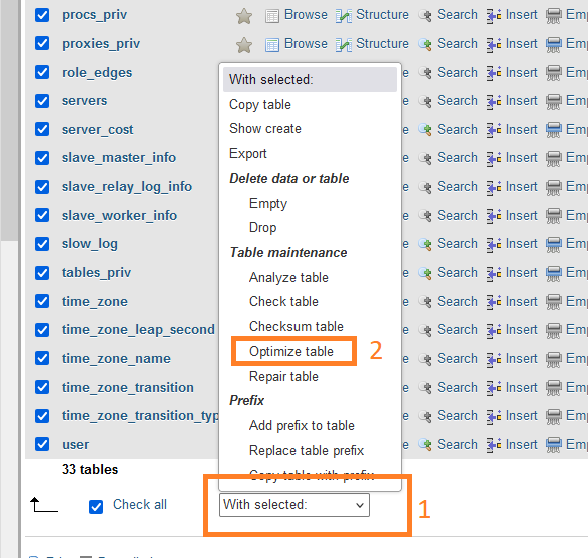
3. Select the tables you want to optimize. If you’re not sure which ones to target, scroll to the bottom of the page and tick the Check all box.

4. From the With selected: dropdown menu, select Optimize table and wait for the operation to complete.
Optimizing with WP-CLI
If you have SSH access to your server (most managed hosting providers offer this), WP-CLI lets you manage WordPress from the command line – faster and scriptable. It’s especially useful if you manage multiple WordPress sites or prefer working outside the admin dashboard.
Run this single command to optimize all database tables:
wp db optimizeThis tells your database (MySQL/MariaDB) to reorganize and rebuild the tables used by your WordPress site. It can refresh table data and sometimes recover unused space, especially after large deletions or changes.
However, this does not clean up WordPress data (like revisions or spam) and is best used occasionally, not regularly. Additionally, always take a backup first and run it during low traffic, because it can briefly affect performance on larger sites..
You can also check your tables for errors before optimizing:
wp db checkThis checks for common table-level errors, but it is not a complete corruption or performance diagnostic.
Using the built-in WordPress repair tool
WordPress comes with a built-in Repair and Optimize Database tool, which can check WordPress database tables and attempt to fix some common table issues.. However, it does not guarantee fixing serious database corruption, especially on modern InnoDB tables.
This tool is hidden by default for security reasons. To access it, you’ll need to edit your wp-config.php file.
The wp-config.php file contains your WordPress site’s configuration information, so you should never edit it without creating a backup first. When you’re ready, follow these steps:
1. Connect to your site files via SFTP (or your hosting provider’s file manager) and open wp-config.php in your site’s root directory.
2. Add this line anywhere above the comment that says ‘That’s all, stop editing!’:
define( 'WP_ALLOW_REPAIR', true );3. Visit yoursite.com/wp-admin/maint/repair.php in your browser. Select ‘Repair and Optimize Database.’

4. Important: Remove the line from wp-config.php immediately after you’re done. This page doesn’t require a login, so leaving it enabled is a security risk.
Not comfortable running these commands yourself? Codeable’s WordPress maintenance experts handle database optimization as part of their monthly packages – so your site stays fast without the technical overhead.
Preventing Future Database Bloat
Cleaning up your database is only half the equation. To keep it running fast, you need to prevent unnecessary data from piling up again. Here are four strategies that address the most common sources of bloat.
Limit post revisions
Every time you save a draft or update a published post, WordPress stores a complete copy as a revision. On a busy site, this can mean hundreds of extra rows in your database for a single post.
You can cap the number of revisions WordPress keeps by adding this line to your wp-config.php file above the “That’s all, stop editing!” line:
define( 'WP_POST_REVISIONS', 5 );This tells WordPress to keep only the five most recent revisions per post. You can set it to any number that makes sense for your workflow – or set it to 0 or false to disable revisions entirely (though keeping a few is usually wise).
You can also shorten how long WordPress keeps trashed items before permanently deleting them:
define( 'EMPTY_TRASH_DAYS', 7 );The default is 30 days. Reducing it to 7 keeps your database leaner without losing the safety net entirely.
Delete unused plugins and themes
Deactivating a plugin stops it from running, but it doesn’t remove the data it stored in your database. Orphaned tables, options, and metadata from old plugins quietly accumulate and slow things down.
The fix is simple: if you’re not using a plugin or theme, fully delete it through the WordPress admin. This removes the files and – in most cases – triggers the plugin’s uninstall routine to clean up its database entries.
Make it a habit to audit your installed plugins every quarter. If something has been deactivated for more than a month, it’s probably safe to remove it entirely.
Identify slow database queries
Before you can fix slow queries, you need to find them. The Query Monitor plugin shows you exactly which database queries run on each page, how long they take, and which plugin or theme triggered them.
Once installed, look for queries that take longer than 0.05 seconds or that fire repeatedly on the same page. Common culprits include plugins that run unindexed queries on every page load, or themes that pull data they never display.
Query Monitor is a free, developer-friendly tool – but you don’t need to be a developer to spot the basics. If you see a plugin responsible for dozens of slow queries, that’s a clear signal to look for a lighter alternative or ask a WordPress expert to investigate.
We recommend providers and tools based on their quality, regardless of any affiliations.
Clean up autoloaded data
Every time someone visits your WordPress site, the database loads a set of data automatically – stored in the wp_options table with an ‘autoload’ value. This is meant for essential settings that WordPress needs on every page load, like your site URL and active plugins.
The problem? Plugins often add their own data to this autoload pool and don’t clean it up when you deactivate them. Over time, the autoloaded data grows well beyond what’s actually needed, slowing down every single page request.
A healthy WordPress site typically keeps autoloaded data under 800 KB (based on WordPress Site Health warnings). To check yours, run this SQL query in phpMyAdmin:
SELECT SUM(LENGTH(option_value)) AS autoload_sizeFROM wp_optionsWHERE autoload IN ('yes', 'on', 'auto-on', 'auto');Replace wp_options if your database uses a custom table prefix.
If the result is significantly above 800,000 bytes, you can identify the biggest culprits:
SELECT option_name, LENGTH(option_value) AS sizeFROM wp_optionsWHERE autoload IN ('yes', 'on', 'auto-on', 'auto')ORDER BY size DESCLIMIT 20;Do not assume entries from removed plugins are automatically safe to delete. First, confirm what created them, export or copy the value, then test on staging if possible.
For active plugins with large autoloaded entries, check whether the plugin offers a setting to reduce what it stores, or consider disabling autoload for that option instead of deleting it (for example, via WP-CLI) if it doesn’t need to load on every request.
Always back up your database before deleting rows from wp_options. Also consider testing changes on a staging site and clearing any object cache afterward. One wrong deletion can break your site.
Consider object caching
Object caching stores the results of expensive database queries in memory, so WordPress doesn’t have to re-run them on every page load. Instead of hitting the database hundreds of times per request, your site serves cached results almost instantly.
Two popular solutions are Redis and Memcached. Both work as in-memory data stores that sit between your WordPress site and its database. The difference for most site owners comes down to hosting support – check with your provider to see which one they offer. Many managed WordPress hosts (like Kinsta, WP Engine, and Cloudways) include Redis or Memcached as part of their plans.
Once your host supports it, you can enable object caching through a plugin like Redis Object Cache or W3 Total Cache. The performance improvement is most noticeable on dynamic, content-heavy sites where the same database queries run repeatedly.
We recommend providers and tools based on their quality, regardless of any affiliations.
Check your database storage engine
WordPress database tables use a storage engine, which determines how data is stored, locked, and recovered. On modern hosting, InnoDB is the standard and recommended engine for WordPress sites because it supports better performance, reliability, and concurrency for dynamic websites.
InnoDB handles multiple users and requests more efficiently, supports row-level locking (so operations usually don’t block entire tables), and includes built-in crash recovery. This makes it well-suited for sites with frequent updates, such as blogs, WooCommerce stores, or membership sites.
To check which engine your tables use, open phpMyAdmin and view your database. Look for the “Engine” (or sometimes “Type”) column next to each table.
If you find tables that are not using InnoDB, you can convert them using SQL. For example:
ALTER TABLE wp_posts ENGINE = InnoDB;Replace wp_posts with your actual table name if your site uses a custom table prefix.
Database optimization isn’t a one-time fix. If you want ongoing maintenance handled by someone who knows WordPress inside out, Codeable’s managed maintenance packages include regular database optimization, plugin updates on staging, and dedicated expert support – starting at $140/month.
When to hire a WordPress database expert
While the methods discussed earlier can be effective, database optimization often requires specialized knowledge. Here’s why you might consider hiring a WordPress development expert:
- Risk mitigation: Database optimization mistakes can be catastrophic, potentially leading to data loss. An expert can navigate these complexities safely.
- Beyond plugin limitations: While plugins are useful, they may have limited functionality. An expert can provide more comprehensive solutions.
- Technical know-how: Manual optimization methods can be intricate and challenging for non-experts. A professional brings the necessary technical skills to the table.
- Comprehensive approach: Plugins and built-in tools might leave optimization gaps, while manual methods can be too much for you to implement. An expert can effectively bridge these gaps.
Now that you’ve seen the value a WordPress expert can bring to your database optimization efforts, it’s time to connect with a skilled professional.
Keep your WordPress database fast with Codeable
If you’d rather have a WordPress specialist handle your database optimization – and keep it optimized month after month – Codeable connects you with vetted experts who know WordPress databases inside out.
For ongoing maintenance, Codeable’s WordPress Maintenance packages start at $140/month and include regular database optimization, plugin updates tested on staging, malware scanning, and a dedicated expert who knows your site.
For one-off projects – like migrating to a faster hosting setup or debugging a particularly sluggish query – you can submit a project and get matched with an expert in under a day.
 Dream It