



Your WooCommerce store sends order confirmations, shipping updates, and receipts automatically – and customers actually read them. Transactional emails get high open rates, yet most stores leave them as plain data tables, missing an easy chance to brand some of the most-read messages they send.
Plenty of guides show you how to change these emails, but only a few help you pick the method that fits your skill level and store setup, or flag which edits quietly break the next time WooCommerce updates.
So, in this guide, we’re covering three things:
- Native settings for quick brand tweaks.
- Plugins for drag-and-drop design.
- PHP with hooks for full control.
Finally, we close with the part most tutorials skip, which is keeping your custom work intact after an update. Let’s begin.
Considerations for choosing a WooCommerce email solution
WooCommerce email customization is the practice of changing how your store’s automated order emails look and read, from their design to their wording. How you do it comes down to five factors: scope, the design-versus-content split, third-party reach, update safety, and cost. Weigh these first, and the method almost picks itself.
There are three broad paths, from beginner to advanced, namely native WooCommerce settings, customizer plugins, and PHP with hooks. Each one handles the five factors below differently, so match them to your store rather than to whichever tutorial you found first.
- Scope: WooCommerce’s core templates are split into admin-facing emails, like new order alerts, and customer-facing ones, like order confirmations. Third-party extensions such as Subscriptions and Bookings send their own emails, and most customizers never reach those.
- Design versus content: A lot of email customization plugins handle design well, and several even let you edit the heading or body text. What almost none can touch is the order details that fill in automatically, or any rule that changes an email based on the order. Reworking those usually means implementing custom code.
- Third-party reach: Free plugins usually cover only the standard email set. Premium tools like YITH WooCommerce Email Templates add explicit support for extension emails, which is the main advantage they hold over free options.
- Update safety: Direct edits to plugin files or a parent theme get wiped on the next WooCommerce update. Only child-theme overrides survive, and we will walk through that workflow later in the article.
- Cost: Native settings are free and instant. Plugins run from $0 to about $90 a year. A custom developer build for email customization typically runs from around $960 for custom plugin work up to $3,200+ for larger builds.
These factors rarely act independently. A store running subscriptions with fully branded renewal notices needs scope, content control, and update safety together. That’s the point where the free tier runs out, and a paid plugin or a developer is required.
Customizing emails with native WooCommerce settings
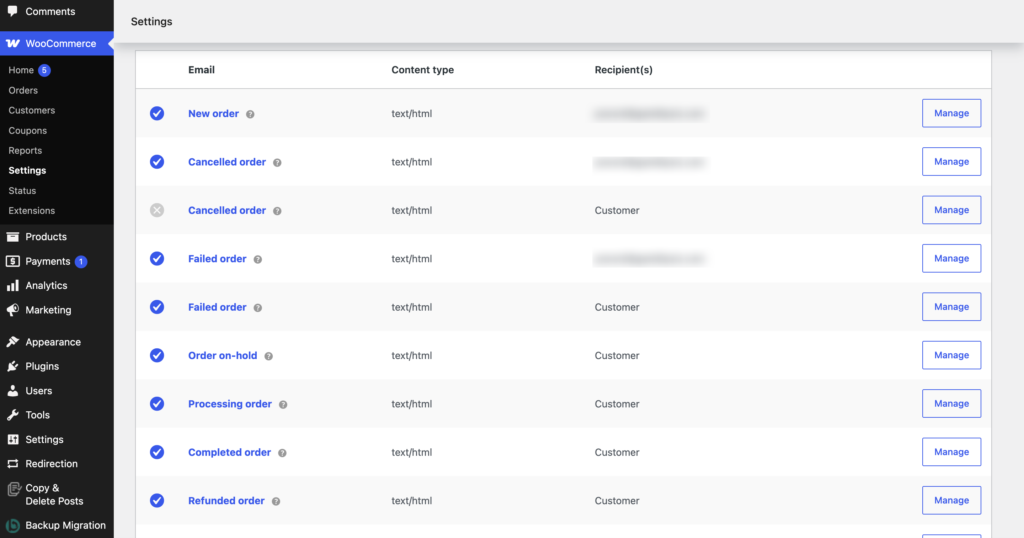
Native email settings are the controls WooCommerce gives you out of the box, with no plugin or code required. You can find them under WooCommerce → Settings → Emails, and they’re the fastest way to add basic branding.
The page has two levels. The global controls at the bottom apply to all 11 email templates at once. This is where you set the logo header image, the footer text, and the base colors for the header, background, and body. Change them once, and every email your store sends picks up the new look.
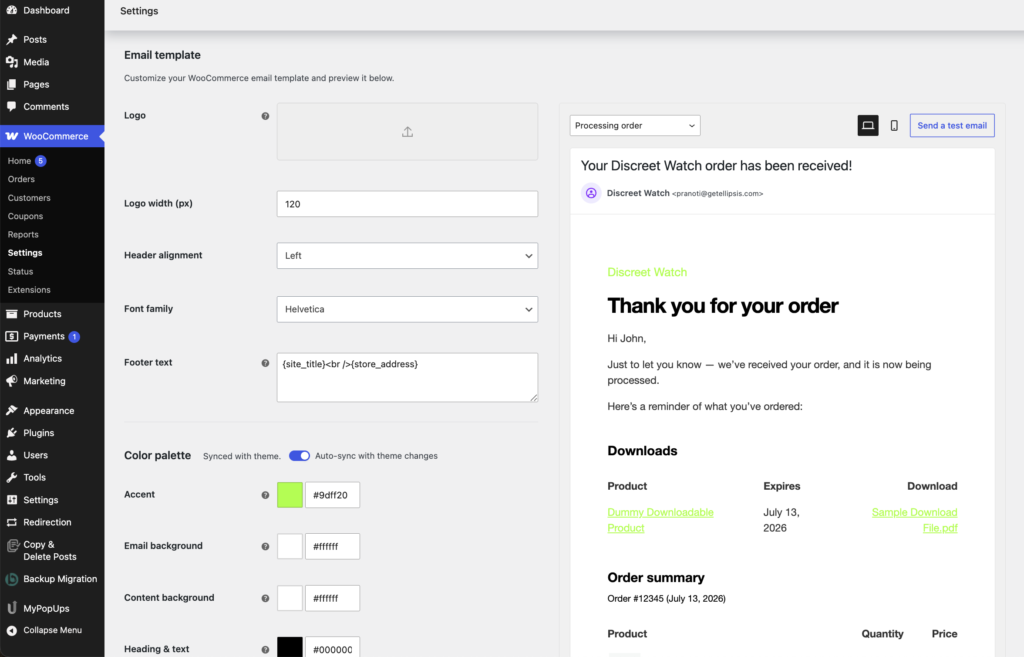
Alt text: Global email template settings in WooCommerce
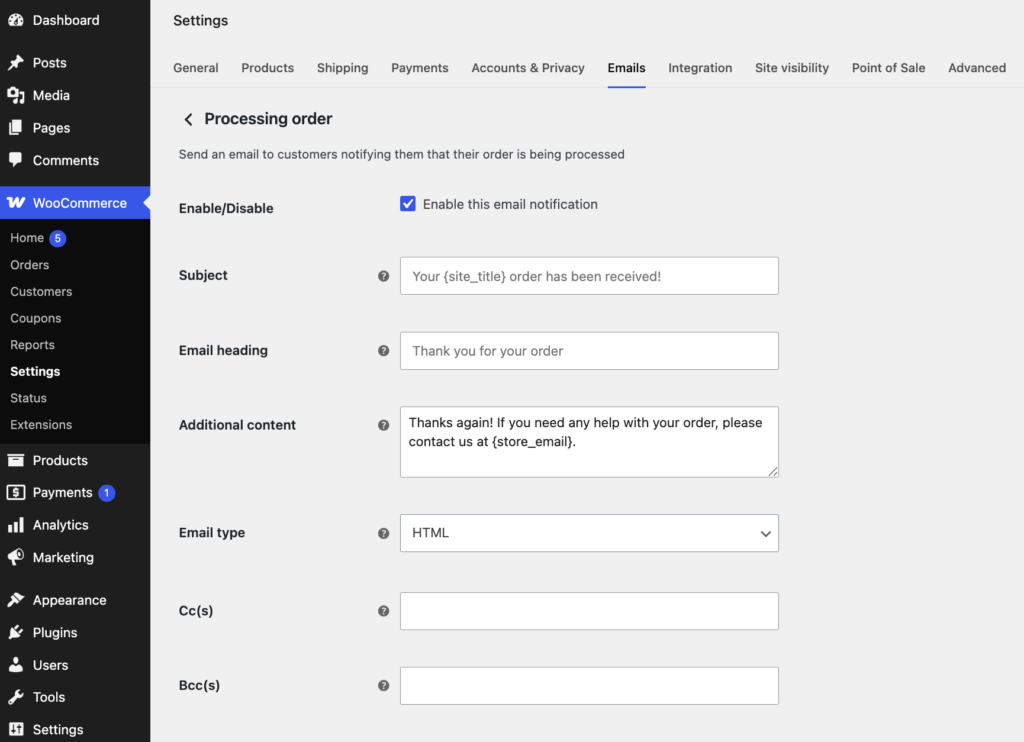
Above that sits the list of individual templates. Open any one and click Manage to reach its own screen, where you can edit three things:
- Subject line: Set the text customers see in their inbox, with placeholders like {site_title}, {order_date}, and {order_number}.
- Email heading: Change the large title inside the email body.
- Additional content: Add a short block of free-form text, such as a thank-you note or return policy.
WooCommerce 9.8 also added per-device previews and a test-send button. You can now check your changes on desktop and mobile and send yourself a sample, without placing a real order first.
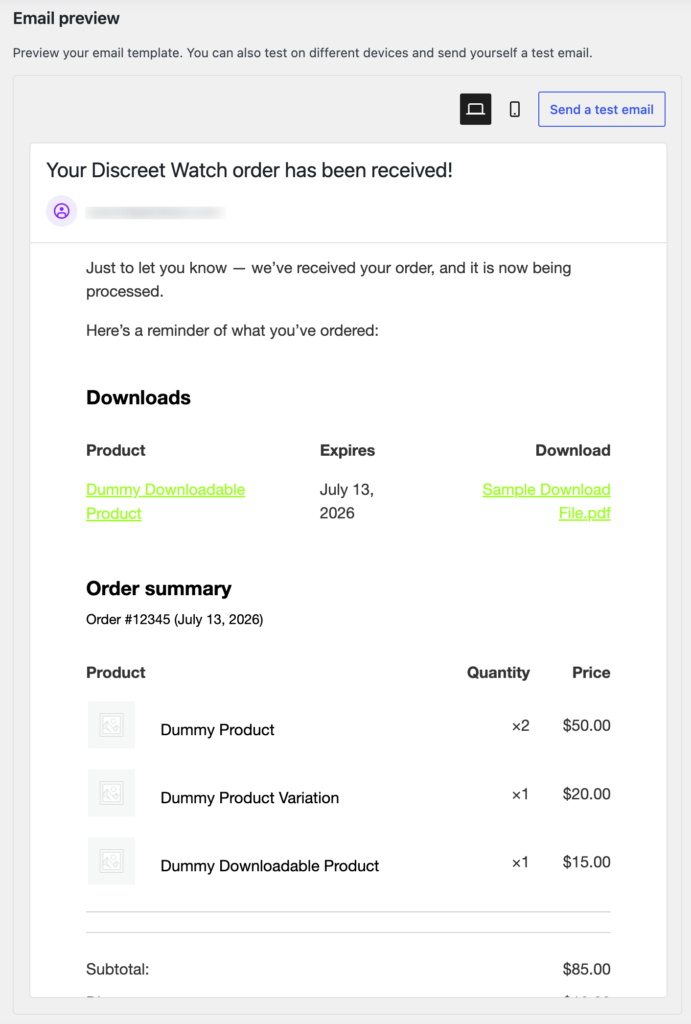
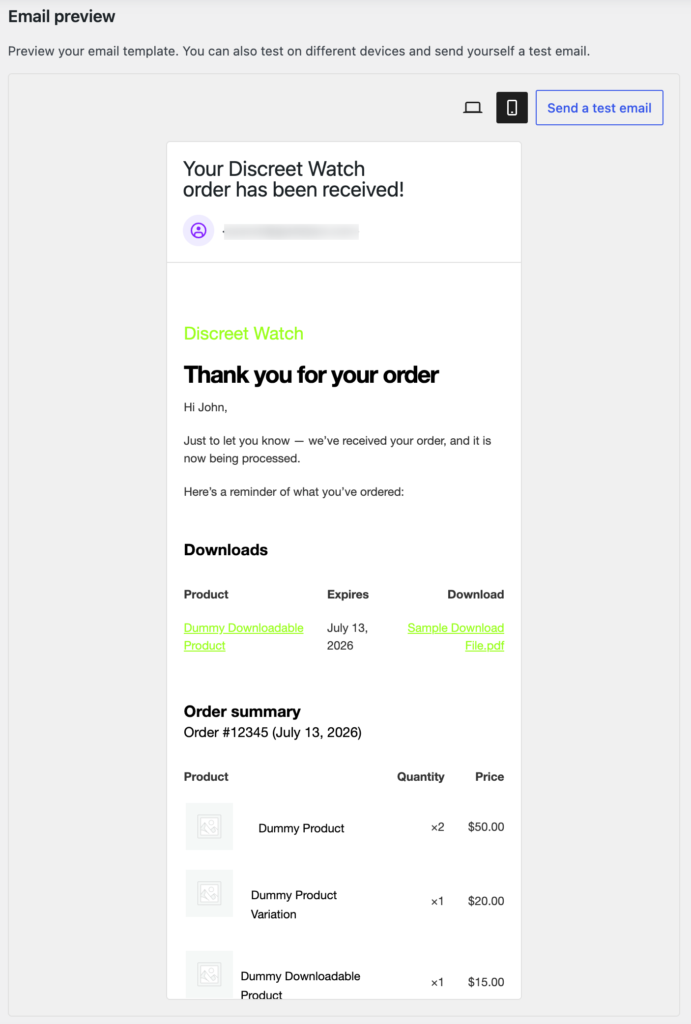
The ceiling arrives quickly, though. Native settings don’t allow you to have different fonts for different emails, nor can you place images inside the email body, add buttons, or alter the layout. A recolored table with your logo on top is as far as they go. For anything past that, you’ll need a plugin or code.
Comparing the main WooCommerce email plugins
Email customizer plugins add a visual editor on top of WooCommerce, so you can style order emails without touching code. Most give you a live preview or a drag-and-drop screen. The trick is that they don’t all do the same things, and their sales pages rarely spell out where they stop.
Here’s how five popular options compare on what they actually deliver:
| Plugin | Price | Design control | Content editing | Conditional logic | Third-party emails | Update safety |
| Kadence WooCommerce Email Designer | Free | Customizer-based, live preview | Edit heading and body text; not the order-details table | No | Core 11 + a few extensions (styled only) | Settings saved in database |
| YayMail | Free + Pro $99/yr | Drag-and-drop, 30+ elements | Add and edit text, image, and button blocks | Via paid addon | Via paid addons | Settings saved in database |
| YITH WooCommerce Email Templates | $89.99/yr | Advanced builder, real-time preview | Styling plus footer text, menu, and banner; body copy needs PHP | No | 17+ YITH extensions (each sold separately) | Settings saved in database |
| Email Template Customizer (VillaTheme) | Free + Pro starting at $32 | Drag-and-drop, WC Hook element | Add and edit elements plus hook content | Pro only | Core 11 + hooks | Some users report post-update issues |
| MailPoet | Free tier available for up to 500 subscribers | One shared template | Styles a shared wrapper, not the order content | No | Core 11 only | Settings saved in database |
A few patterns stand out:
- Free options with drag-and-drop: YayMail and VillaTheme’s plugin both offer visual, drag-and-drop editing at no cost, which makes them easy starting points for non-coders. Kadence is free too, but it works through the WordPress Customizer with sidebar controls and a live preview instead.
- Text editing varies more than you’d expect: Kadence, YayMail, and VillaTheme all let you edit or add body text, while YITH sticks mainly to styling plus a footer, menu, and banner. MailPoet styles one shared wrapper for every email.
- The shared limit is the order details: No plugin here rewrites the order-details table that fills in automatically, and none adds rules that change an email based on the order. Reworking those means PHP, which we cover later.
- Third-party reach separates the tiers: YITH styles emails from 17+ of its own extensions, like Subscriptions and Bookings, though each of those plugins is a separate purchase. Most free plugins only cover the 11 core WooCommerce emails.
WooCommerce is also building a native block-based email editor. As of mid-2026, it’s a beta feature – enable it under WooCommerce → Settings → Advanced → Features – and it has moved well beyond its first releases: you can edit text and images like a post, and it now handles template updates and custom overrides. Confirm whether the order/billing table is still auto-generated before publishing; treat this as a fast-moving, near-ready option rather than a finished standard.
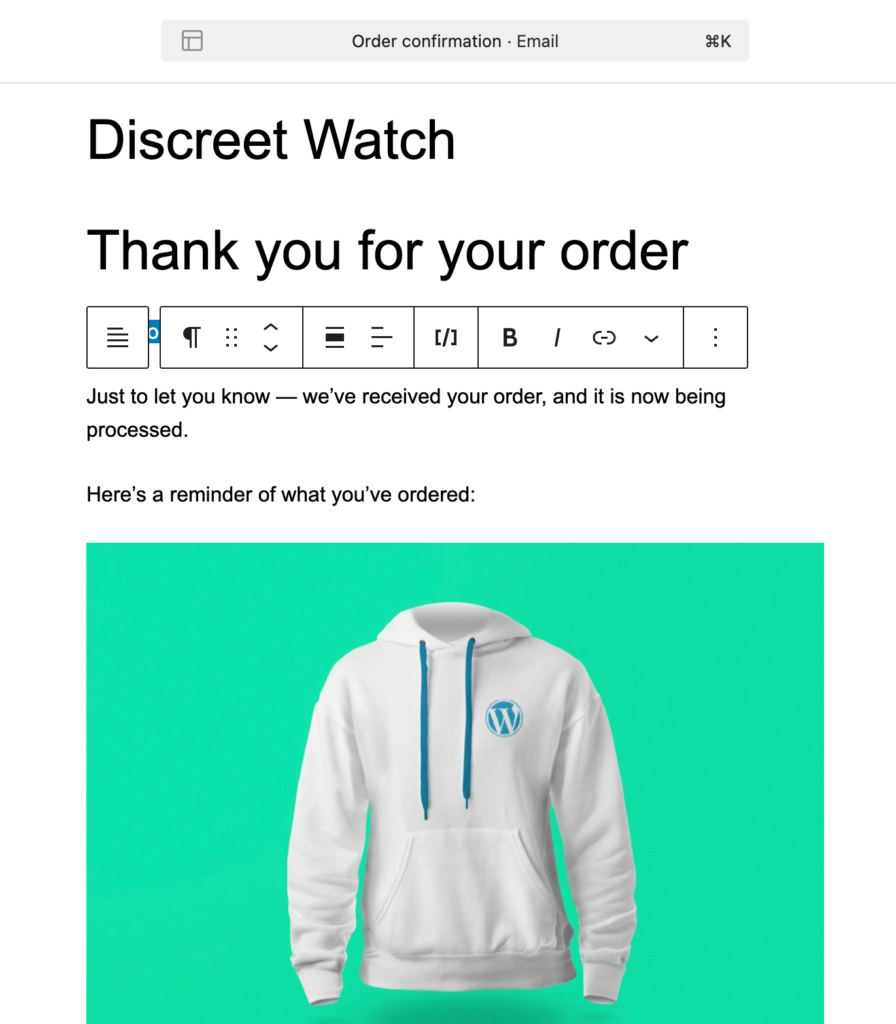
However, the order and billing table is still auto-generated and non-editable. Plus, you need to enable this feature through WooCommerce → Settings → Advanced → Features manually, as it is not enabled by default, so treat it as a promising option to test rather than the settled standard.
Important note: Our plugin picks are recommended based on quality and fit, and are independent of any partnerships Codeable may hold.
Customizing WooCommerce emails with PHP and hooks
PHP and hooks are the code-level way to edit WooCommerce emails. It’s what you reach for when a plugin can’t do the job. People usually go this route for one of three reasons: to rewrite the order content that fills in on its own, to style emails from an extension that no plugin covers, or to rework the layout from the ground up.
We’ve already discussed a full walkthrough for the Order Completed email, so this section won’t repeat that PHP example. We’ll focus instead on the two things you’ll use most often: safe template overrides and content hooks.
Setting up a child theme override safely
A template override swaps one of WooCommerce’s built-in email files for your own copy, stored in your child theme. WooCommerce checks your theme folder before its own, so your version is the one that loads.
To set one up, copy the template you want from wp-content/plugins/woocommerce/templates/emails/ into wp-content/themes/your-child-theme/woocommerce/emails/. Then edit the copy in your child theme, and leave the original alone.
This matters because editing the parent theme or the plugin file directly gets wiped the next time WooCommerce updates. The child-theme copy is the only place your changes survive. To stay on top of it, check WooCommerce → Status → Templates now and then, which flags any override that has fallen behind the current version so you can catch outdated copies before they cause problems.
Adding content with email action hooks
Action hooks let you add content to an email without copying or editing a template file. You write a short function, attach it to a hook, and WooCommerce runs it in the right spot. Business Bloomer’s Visual Hook Guide for Emails maps every position from top to bottom, so you can place content almost anywhere in the email:
- woocommerce_email_header: Runs at the very top, just after the heading.
- woocommerce_email_before_order_table: Runs above the order table, where WooCommerce prints bank transfer and cash-on-delivery instructions.
- woocommerce_email_after_order_table: Runs right below the order table.
- woocommerce_email_order_meta: Runs just under the table, near the order details.
- woocommerce_email_customer_details: Runs inside the customer details block.
- woocommerce_email_footer: Runs at the very bottom.
For example, to drop a thank-you note under the order table on the Order Completed email, attach a function to woocommerce_email_after_order_table in your child theme’s functions.php file, then check the email ID so the note shows on that email only.
There’s one clear limit. Hooks add new content, but they can’t change text that’s already in the template. As the same guide points out, there’s no filter to reword a built-in line like “Your order has been received,” so that kind of edit still needs a template override. Rules that change an email based on product category, payment method, or customer location get complex fast. That conditional logic is usually a job for a Codeable expert, not a quick snippet.
Keeping custom templates safe through WooCommerce updates
A stale template override is a child-theme email file that has fallen behind the version that WooCommerce now ships. This is the quiet risk that catches stores off guard. When you copy an email template into your child theme, that copy is frozen at the version you started with. WooCommerce, meanwhile, keeps improving its own templates in later releases.
When the plugin updates a template upstream, your frozen copy still loads, but it no longer matches. The new markup that WooCommerce added is missing from your version. The result can be a rendering bug, a broken layout, or a detail that silently drops off, and you often won’t spot it until the next order goes out.
WooCommerce gives you an early warning for this. Go to WooCommerce → Status → Templates, and it lists every child override that has fallen behind the current plugin version, with both version numbers shown side by side. Most stores never open this screen, which is exactly why the breakage stays hidden.
A steady workflow keeps your custom templates current:
- Keep your child-theme overrides in version control, such as Git, so every change is tracked.
- Check Status → Templates after each WooCommerce minor release.
- Compare the upstream change against your override to see what moved.
- Merge the new markup into your copy by hand, then test on staging before it goes live.
This upkeep adds up. For stores where it outgrows what the in-house team can carry, the work shifts into ongoing development: recurring maintenance handled by a developer instead of a one-time fix. Let’s see how that works with Codeable, including the warranty terms.
When to bring in a WooCommerce expert
Most email work stays in your hands. A few situations, though, cost more time to solve yourself than they save. That’s the point to bring in a developer.
You’re likely there if your project involves any of these:
- A multi-extension store where Subscriptions, Bookings, Memberships, and payment-gateway emails all need matching styling.
- Conditional logic that changes an email by product category, payment method, or customer location.
- Design, content, and update safety are bundled into one scope, with no room for anything to break.
The same holds if you’re routing transactional emails through a marketing platform like AWeber or Klaviyo, or working to keep those emails landing in the inbox instead of the spam folder. Both take real technical skill to get right.
If that’s the stage you’re at, Codeable is one place to find that help. We are an official WooCommerce development partner, and every project runs through a pre-vetted developer pool with a 2.2% acceptance rate, so you’re matched with someone who has done this kind of work before. Pricing comes as a single fixed estimate rather than a bidding war, and every build carries a 28-day bug-fix warranty.
For stores that need this handled continuously rather than as a one-off, Codeable also supports ongoing retainers – recurring maintenance billed weekly through to yearly, with no lock-in and the same 28-day warranty on every piece of work.
Where you start depends on how settled your plans are. If you’ve already chosen your method and just need it set up and running, there’s a package built around hands-on configuration. If you’re still deciding which route fits your store, a short consultation with an expert can help you map it out first. Explore Codeable’s WooCommerce packages to see all options.

Get matched with the developer
that is perfect fit for your WordPress or WooCommerce needs.
Start a project
 Dream It